How to Delete Pages From a PDF Without Breaking the Rest
Remove blank, duplicate or private pages from a PDF in a few clicks. Learn three methods, what to check afterward and what deleting does not do.
Read article →Select the pages you do not want and we will delete them. Click thumbnails or type page numbers such as 2, 5-7.
Typical jobs: dropping a blank page after scanning, removing a cover sheet, deleting an appendix before sharing, or taking confidential pages out of a longer report.
You can use quick selectors for odd or even pages, which helps with double-sided scans that picked up blank backs. To keep only some pages instead of deleting the rest, use Extract Pages.
Select pages visually or enter ranges.
Quick selectors for common patterns.
The new file contains only the pages you keep.
Done in your browser in seconds.
Yes. Type something like 1, 4-6, 10- in the box, or click pages one by one.
Yes. The new file is built only from the pages you keep, so removed pages are not hidden inside it.
No, at least one page must remain.
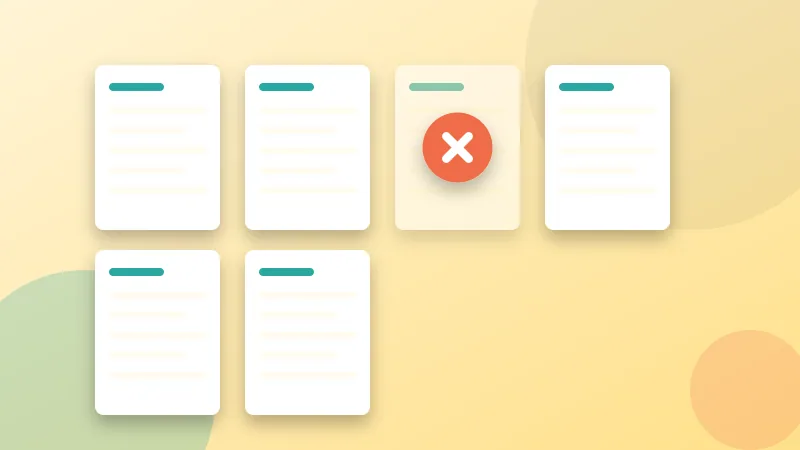
Remove blank, duplicate or private pages from a PDF in a few clicks. Learn three methods, what to check afterward and what deleting does not do.
Read article →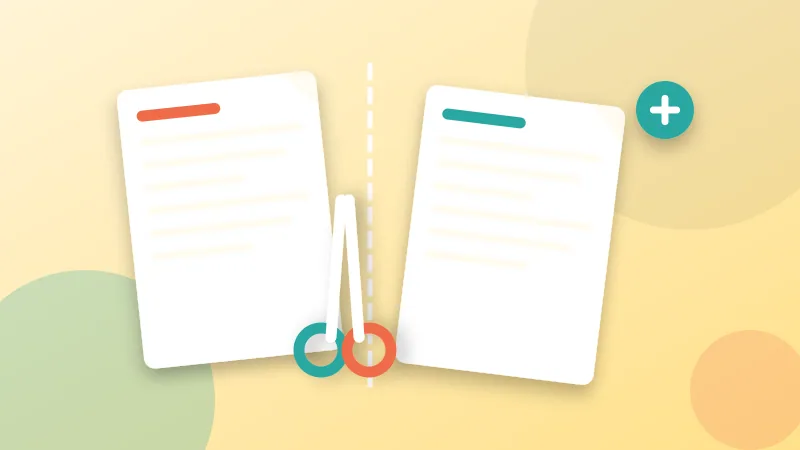
Split a PDF by page range, into equal parts or one page per file. Also learn when to extract or remove pages instead.
Read article →It is free, private and takes seconds. Your files never leave your device.