How to Split a PDF: Ranges, Single Pages and More
Split a PDF by page range, into equal parts or one page per file. Also learn when to extract or remove pages instead.
Read article →Cut a PDF into several smaller documents. Split by custom page ranges, into equal parts, or into one file per page.
Splitting helps when a document is too big to email, when only a few pages are relevant to the reader, or when a scan contains several documents back to back. With ranges such as 1-3, 5, 8- you can create exactly the files you need in one go.
If you only want to keep certain pages in a single new file, Extract Pages lets you pick them visually. To delete pages instead, use Remove Pages.
By custom ranges, every N pages, or one file per page.
Several results are bundled into one ZIP for a single click.
Outputs are named after the original plus the page range.
No upload wait, even for large files.
Separate them with commas. 1-3, 5, 8- creates three files: pages 1 to 3, page 5, and page 8 to the end. Tick the combine option if you want all those pages in one file instead.
Several files are bundled into one ZIP archive so you download them in a single click. You can also download them one by one.
No. Pages are copied as they are, without recompression.
No fixed limit. Very large documents depend on your device's memory.
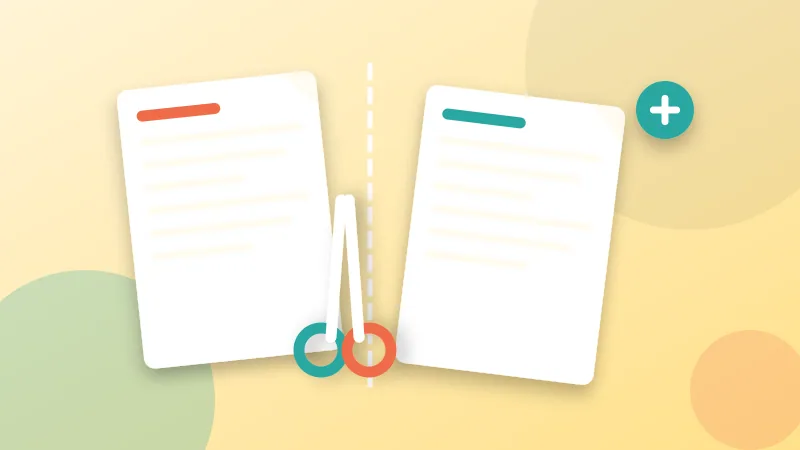
Split a PDF by page range, into equal parts or one page per file. Also learn when to extract or remove pages instead.
Read article →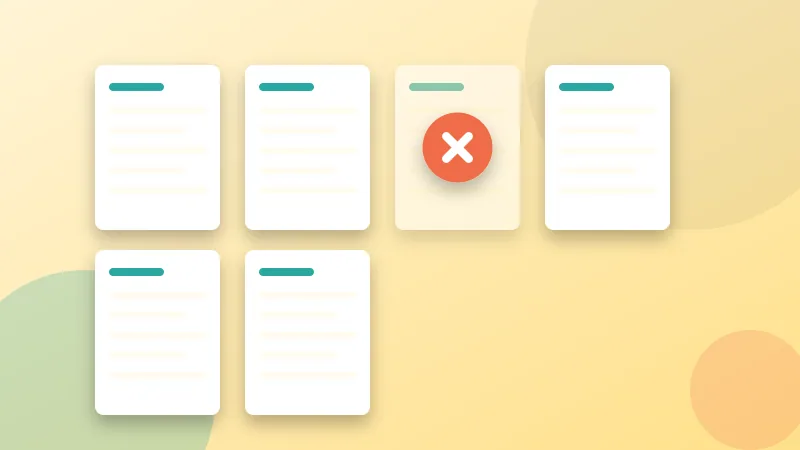
Remove blank, duplicate or private pages from a PDF in a few clicks. Learn three methods, what to check afterwards and what deleting does not do.
Read article →It is free, private and takes seconds. Your files never leave your device.