A cover sheet nobody needs. Three blank pages at the end of a scan. A page with a phone number that should not be shared. Deleting pages from a PDF is one of the most common jobs there is, and it should take seconds. It usually takes longer because people reach for software they do not have or upload a private document to a website they do not know. Here is a simpler way, and the details that are easy to miss.
Three ways to get rid of pages
The result is the same in all three cases, a PDF without the pages you did not want. The difference is which way round you think about it.
- Remove pages: you pick the pages to throw away. Best when you want to keep almost everything. Use Remove Pages.
- Extract pages: you pick the pages to keep. Best when you only need a small part of a long document. Use Extract Pages.
- Organize: you see every page and also reorder or rotate while you delete. Best for messy scans. Use Organize PDF.
Step by step with Remove Pages
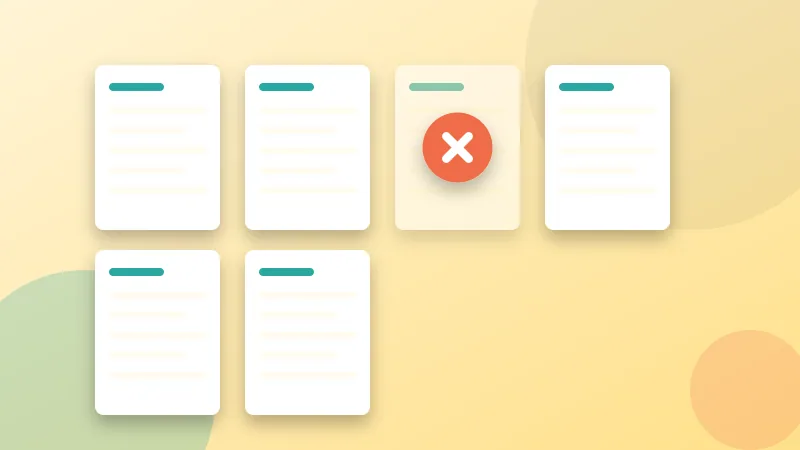
- Open Remove Pages and choose your PDF. Thumbnails of every page appear.
- Click the pages you want to delete. They are highlighted. You can also type them in the box, for example
1, 4-6, 10-. The dash after 10 means "page 10 to the end". - For double-sided scans use the Odd and Even buttons to select every other page in one go.
- Press Remove selected pages and download the new PDF.
Everything happens in your browser. The file is not uploaded, so it is a reasonable choice for contracts and personal paperwork.
Typical situations and the quickest fix
Blank pages from a duplex scan
Many scanners capture both sides of every sheet, including empty backs. Scroll through the thumbnails, select the blank ones and delete them. If the pattern is regular, the Odd or Even selector does it instantly.
A cover page or advertisement
Select page 1 and remove it. If the same unwanted page appears at the start of several files, repeat the process or merge the files first with Merge PDF and clean the combined document once.
Keeping only a section
If you want pages 12 to 18 out of a 200-page report, do not delete 192 pages. Use Extract Pages and keep 12-18.
Splitting rather than deleting
When you want both parts, say a contract and its annexes in separate files, Split PDF is the better tool because nothing is thrown away.
What to check afterwards
Deleting is easy. The side effects are what bite people.
- Page numbers. If the pages carry printed numbers, the sequence now has gaps. That is fine for personal use but may confuse a recipient. You can add fresh numbers with Add Page Numbers.
- Table of contents and internal links. A link that pointed to a deleted page may stop working or jump to the wrong place. Click a few of them.
- Bookmarks. Outline entries that referred to removed pages can disappear. If your document relies on bookmarks, check the sidebar.
- References in the text. "See page 14" may now mean something else.
Always open the new file and scroll through it once before you send it or delete the original.
Deleting pages and privacy
If a page contains something private and you remove it from a copy, the copy no longer contains it. That is a genuine removal, because the new PDF is assembled only from the pages you kept.
It is a very different thing from covering text on a page. Drawing a black rectangle over a number, or cropping a page, leaves the underlying text in the file where it can often be selected or recovered. If a sensitive detail sits on a page you still need, the safe route is to rebuild that page without the detail, not to hide it. And remember that any earlier copies you already sent still contain the page.
Good habits
- Keep the original and give the edited file a clear name such as contract-clean.pdf or report-pages-1-20.pdf.
- When in doubt, delete less. You can always remove more later, but you cannot bring back a page you threw away from a file you overwrote.
- For long documents, work in two passes: remove the obvious blank pages first, then reread what is left.