How to Split a PDF: Ranges, Single Pages and More
Split a PDF by page range, into equal parts or one page per file. Also learn when to extract or remove pages instead.
Read article →Keep only the pages you need. Choose them from the thumbnails or type ranges, and get a new PDF with just those pages.
Extracting is perfect when you only need a section of a long document: one chapter of a report, the signature page of a contract, or the pages of an invoice that matter for an expense claim.
Tick the option to save each selected page as its own file and you will get them in a single ZIP. For a more general cutting tool with ranges and fixed-size chunks, see Split PDF.
Pick pages from thumbnails or type ranges.
Create one PDF, or one PDF per page.
Your source file is never modified.
Works on large documents, depending on your device.
Extracted pages keep their original order. To change the order afterwards, use Organize PDF.
No. Your original stays untouched on your device; you download a new file.
Yes, tick “Save each selected page as its own PDF” and download them as a ZIP.
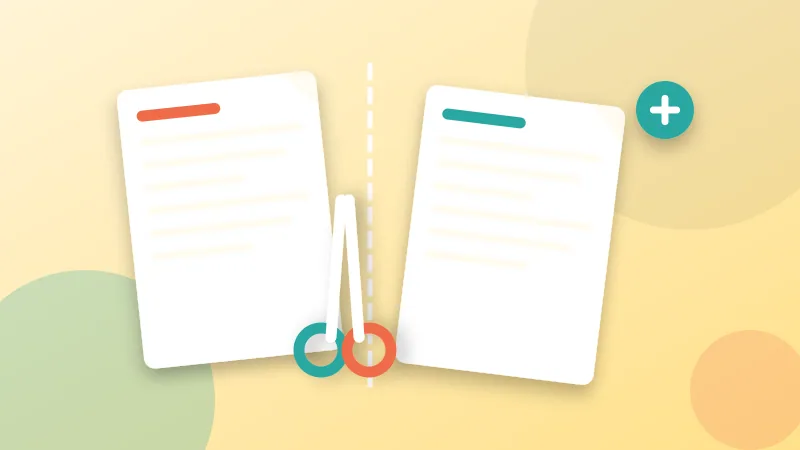
Split a PDF by page range, into equal parts or one page per file. Also learn when to extract or remove pages instead.
Read article →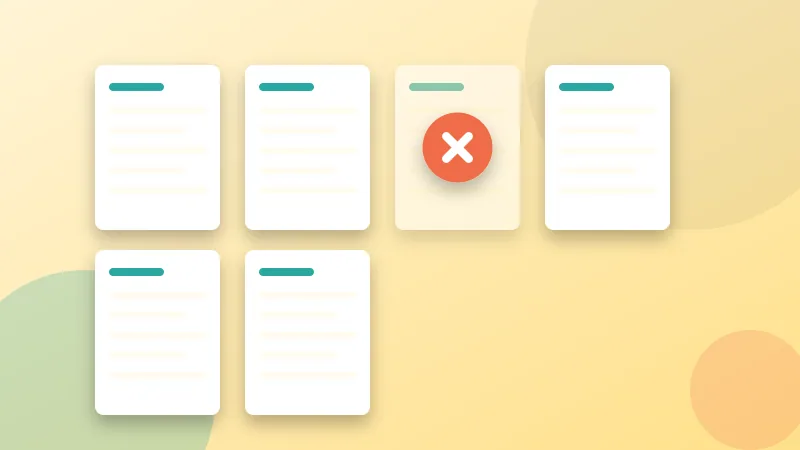
Remove blank, duplicate or private pages from a PDF in a few clicks. Learn three methods, what to check afterwards and what deleting does not do.
Read article →It is free, private and takes seconds. Your files never leave your device.