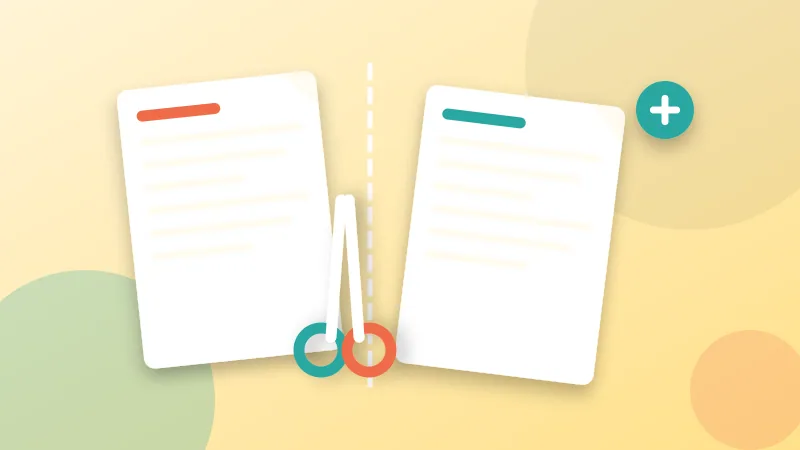
Sometimes you do not need the whole document. You need chapter three, or the first ten pages, or every page as its own file. "Split" covers all of that. There are three ways to do it and one of them is usually the best fit, and knowing which saves a surprising amount of clicking.
Pick the right method
- Split by ranges when you know the sections:
1-5, 6-12, 13-gives three files. - Split every N pages for repeating batches, like a scan that contains one two-page form per customer.
- One page per file when each page stands alone, such as separate invoices or certificates.
Think about what the recipient needs. A client who must approve pages 4 to 9 of a long proposal does not need pages 1 to 3, and sending only what is needed is both faster and tidier.
How to write ranges
Separate ranges with commas. 1-3 means pages 1 to 3. A single number such as 7 is just that page. A trailing dash like 10- means from page 10 to the end. Spaces do not matter. Tick the combine option if you want all those pages in one file instead of several.
If you type something that does not fit, such as a page number beyond the end of the document, the tool tells you what is wrong and highlights the field so you can correct it.
Splitting step by step
- Open Split PDF and add your file.
- Choose a mode and enter your ranges or number.
- Press Split. Several files arrive together as a ZIP, and you can also download them one by one.
Files are named after the original plus the page range, for example report-pages-4-9.pdf, so they are easy to recognise.
Typical jobs
One contract with several annexes
Split into the main agreement and each annex so you can send each party only what concerns them.
A scan with many documents back to back
If every document is two pages, "every 2 pages" separates them in one go. If lengths vary, use ranges.
A long report for different readers
Create one file per chapter, or one for the summary and one for the data. The summary is far more likely to be read.
A file that is too big
If compression is not enough, splitting is the next option. See our guide to reducing PDF size for email.
When another tool fits better
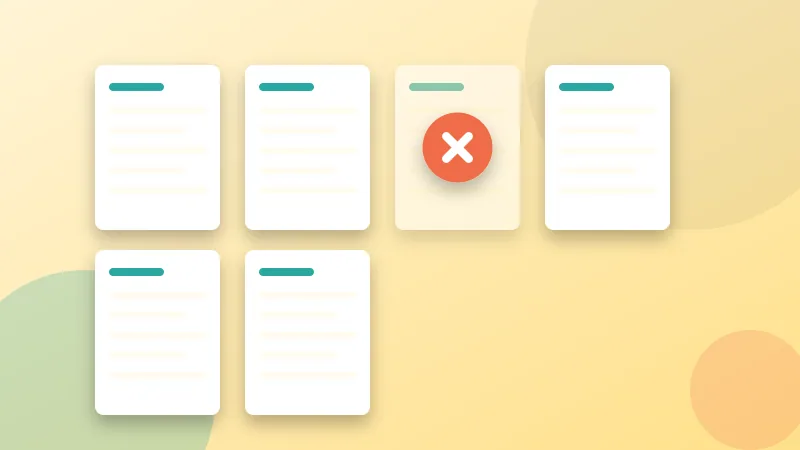
Need one new PDF made of a few chosen pages? Use Extract Pages and click thumbnails instead of typing numbers. Want to keep almost everything and just drop a few pages? Remove Pages is faster than building ranges that skip them. Our guide to deleting pages from a PDF compares the options.
Privacy and good habits
Splitting is a clean way to share only the relevant part of a document, such as a single payslip from a yearly bundle. Because the work happens in your browser, the pages you leave out never travel anywhere. Keep the original untouched, name the new files clearly, and open each one before you send it.