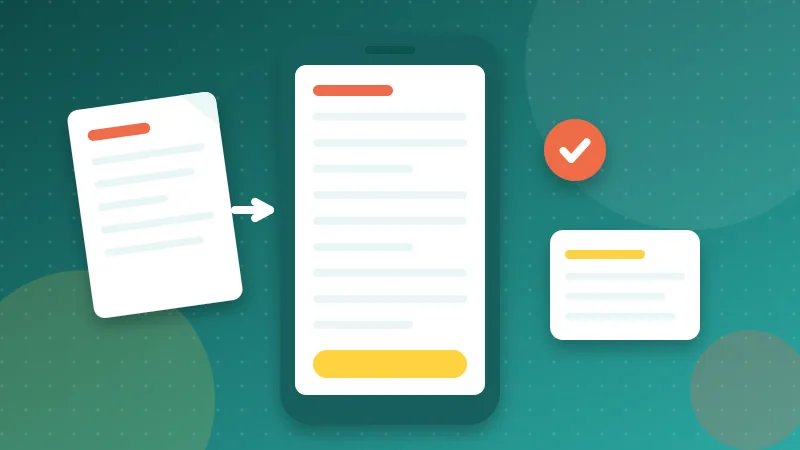
A PDF is a printed page frozen in digital form. That is perfect on a desk and miserable on a six-inch screen: tiny text, wide white margins, constant pinching and scrolling sideways. You cannot make a PDF reflow like a web page, but you can do a lot to make it readable on a phone, tablet or e-reader. A few minutes of preparation turn a squint-fest into something you can read on a train.
Why PDFs are hard to read on small screens
Most PDFs are designed for A4 or Letter paper, about 8.3 to 8.5 inches wide. A phone screen is roughly a third of that. To fit the whole page, the viewer shrinks everything, including text that was already only 10 or 11 points. Add generous print margins, which can take up a quarter of the page width, and the actual text ends up minuscule.
Unlike web pages or e-books, a normal PDF has fixed positions for every word. It does not rewrap lines to fit your screen. So the solutions are about removing wasted space, choosing the right view and, where possible, extracting the words.
Crop the margins
Trimming the white border makes the text noticeably bigger on screen without zooming. With Crop PDF:
- Open your PDF and look at the preview.
- Enter how many inches to remove from the top, bottom, left and right. Start with 0.6 to 0.8 inch on the sides.
- Watch the shaded preview to make sure no text, page numbers or notes are cut.
- Crop and download, then copy the new file to your phone or e-reader.
The same margins apply to every page, so check a few different pages, including ones with wide tables or images. Cropping changes the visible area only. The content outside stays in the file, so you can always go back to the original.
Use the best view in your reader app
- Landscape orientation makes the page as wide as possible. Scroll down instead of pinching.
- Single page or continuous scroll: continuous scroll suits text, single page suits slides and forms.
- Fit to width rather than fit to page. On a cropped document this alone may give comfortable text.
- Reading or reflow modes: some apps offer a "liquid", "reading" or "reflow" mode that rewraps text. Results depend on how the PDF was made, but they are worth trying on text-heavy documents.
- Dark mode in the viewer reduces glare at night. Some apps invert the page colors for PDFs.
Split long documents
A 600-page manual is slow to open on a phone and hard to navigate without a working table of contents. Split it into chapters with Split PDF using page ranges, for example 1-40, 41-95, 96-150. Each part opens quickly, and your reader app remembers your position in each one.
If you only need one section, take just those pages with Extract Pages.
On an e-reader
E-ink devices make PDFs look like paper, but most have small screens and slow page turns, so the same tricks apply even more.
- Crop margins before transferring the file. The difference on a six-inch e-ink screen is dramatic.
- Many e-readers offer PDF zoom, landscape and column modes. Look in the reading menu while a PDF is open.
- Some manufacturers' send-to-device services can convert a PDF into their own reflowable format. Text-only documents usually convert well; complex layouts, tables and equations often do not. Keep the original just in case.
- Larger e-readers, around ten inches, display A4 and Letter pages almost at full size and are the comfortable option if you read many PDFs.
When you only need the words
Novels, articles and reports that are mostly text can be read far more comfortably as plain text, which reflows to any screen size and any font. PDF to Text extracts the words from a PDF into a UTF-8 .txt file you can open in a notes app or e-reader. You lose layout, images and formatting, so it is not right for documents where tables or figures matter, but for long reading it is often the best experience.
This works only if the PDF contains real text. Scanned books are images and would need OCR first. Our guide to extracting text from a PDF covers both cases.
If you create PDFs for mobile readers
When you are the author, you can spare your readers the trouble:
- Use a single column and a body font of at least 11 to 12 points.
- Keep margins moderate. Print-sized margins waste half the phone screen.
- Include bookmarks or a linked table of contents for long documents.
- Keep the file light. Compress PDF helps if large images make it slow to download on mobile data.
- For content that is read mostly on phones, consider publishing a web page instead, with the PDF as a downloadable extra.