You scan a twenty-page document, open the PDF and find page 7 sitting before page 3, the back sides grouped at the end, or the whole thing running back to front. Or you merged five files and the appendix landed before the introduction. Reordering a PDF should not mean rescanning or starting again. With a visual page editor it takes a minute, and a few tricks make even badly mixed scans quick to repair.
Why PDF pages end up in the wrong order
Knowing the cause helps you pick the quickest fix:
- The stack went in face down or reversed. Some feeders scan from the last page. The whole document comes out back to front.
- Single-sided scanning of double-sided pages. You scan all the fronts, flip the stack, scan all the backs, and the backs end up together at the end in reverse.
- Merged files in the wrong sequence. Files were added in alphabetical order, or in the order they were clicked.
- A dropped sheet. One page was rescanned later and appended at the end.
Rearrange pages step by step
Organize PDF shows a thumbnail of every page and lets you rearrange them freely:
- Open the tool and choose your PDF. The pages appear as a grid of previews.
- Drag a page to its new position. On a phone or tablet, use the small arrow buttons on each page instead of dragging.
- Delete pages you do not want, and restore them if you change your mind. Rotate any sideways page while you are there.
- When the order looks right, press Save and download the new PDF.
Nothing is final until you save, so experiment freely. The file is processed in your browser and is not uploaded, which matters for contracts, medical records and anything personal.
Fixing a document that is entirely back to front
If page 1 is at the end and the last page is at the start, do not drag twenty pages one by one. Use the Reverse order button in Organize PDF. Check the first and last pages, then save.
If the pages are also upside down, which often happens when a stack goes in the wrong way round, rotate them all by 180 degrees in the same screen, or afterward with Rotate PDF.
Fixing double-sided pages scanned in two passes
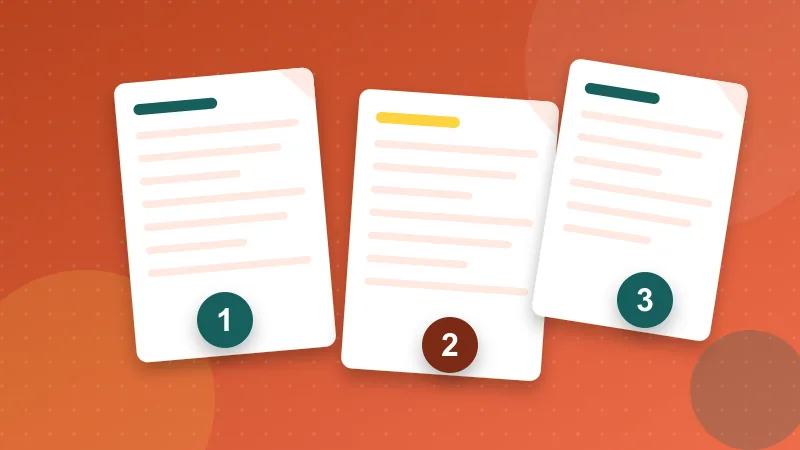
This is the classic headache. You scanned fronts (1, 3, 5, 7) and then backs, which came out as 8, 6, 4, 2. The PDF reads 1, 3, 5, 7, 8, 6, 4, 2. Two approaches work:
For a short document
Drag the back pages into position in Organize PDF. With eight or ten pages it is quicker than any clever method.
For a long document
- Use Split PDF to separate the fronts and the backs into two files.
- Reverse the backs in Organize PDF so they read 2, 4, 6, 8.
- Merge both files with Merge PDF, then interleave the pages in Organize PDF.
Honestly, if you scan double-sided documents often, the real fix is a scanner or app with a duplex mode or a "collate" option that does the interleaving for you. The blank backs that duplex scanning produces are easy to clear with Remove Pages.
Reordering whole files before merging
When you combine several PDFs, set the order before merging rather than after. In Merge PDF drag the files into sequence, or rename them first with numbers such as 01-cover.pdf, 02-report.pdf, 03-appendix.pdf so they sort correctly. Reordering individual pages afterward is fine, but moving a 30-page appendix one page at a time is not.
Check the result properly
After saving, scroll through the new file once. Look for these:
- Printed page numbers on the pages themselves should now run in sequence. If the pages had no numbers, add them with Add Page Numbers so the order is obvious to the reader.
- Bookmarks and table-of-contents links may still point to the old positions. Click a couple of them.
- Spreads in brochures and magazines rely on facing pages. Moving one page can break a left-right pair.
Tips that save time
- Work on a copy and keep the original until the new file has been checked.
- Zoom out to see all pages at once when you are moving a page a long way.
- Fix the order before you compress, sign or watermark. Every later step is easier on a document that is already right.
- Give the result a clear name, for example lease-2026-ordered.pdf, so nobody opens the jumbled version by mistake.