You have a PDF full of information and you need the words: to quote a paragraph, translate a section, paste a table into a spreadsheet or search across many files. Sometimes you highlight, copy and paste, and it simply works. Other times the cursor refuses to select anything, or the text arrives as a jumble. Which of those you get depends on a single fact about the file, and once you know it you can pick the right approach in seconds.
Step one: is it a text PDF or a scanned PDF?
Open the file and try to select a sentence by dragging across it, or press Ctrl+F and search for a word you can see. Two outcomes:
- The text highlights and the search finds it. The PDF contains real text. Extraction is simple and accurate.
- Nothing highlights, or search finds nothing. The page is a picture of text, usually because it was scanned or photographed. The words exist only as pixels.
Some files are mixed: a text cover page followed by scanned appendices. Check several pages, not just the first.
Method 1: copy and paste
For a paragraph or two, nothing beats selecting the text, copying it and pasting it into your editor. If paragraphs come out with a line break at the end of every line, paste into a plain text editor first, or use "paste without formatting".
Keep an eye on columns. A two-column layout can paste in an order that mixes the columns. In that case select one column at a time.
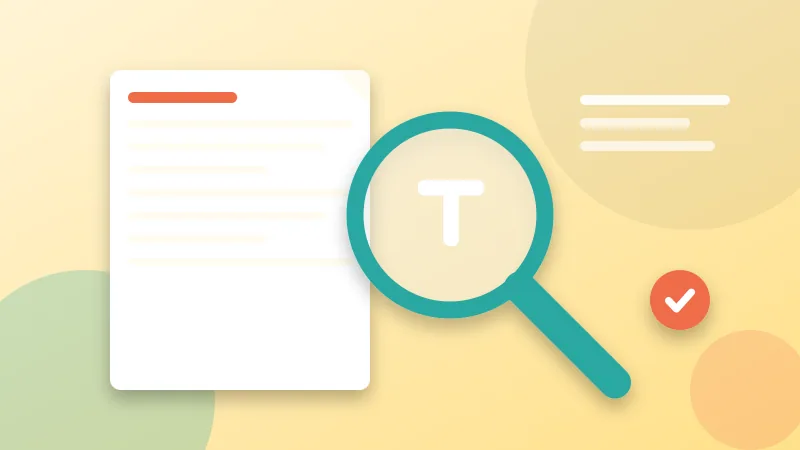
Method 2: extract all the text at once
For a whole document, use a converter. PDF to Text reads every page and gives you a single .txt file encoded in UTF-8, which keeps accented letters and other alphabets intact. You can add a "Page N" marker before each page, which helps when you need to cite where something came from. It all happens in your browser, so the document is not uploaded.
If you only need part of a long document, first cut it down with Extract Pages or Split PDF, then extract the text from the smaller file. That is faster and the output is easier to work with.
What you will and will not get
Plain text is just words. That means:
- Fonts, colors, bold and images are gone.
- Tables become lines of values separated by spaces or line breaks. Copy a table into a spreadsheet programme and use "split text into columns" or rebuild it by hand.
- Headers, footers and page numbers appear in the middle of the text on every page. Search and delete them.
- Hyphenated words at the end of lines may stay split.
Treat the output as raw material to tidy, not as a finished document.
When the PDF is a scan: OCR
OCR, optical character recognition, reads the shapes of letters in an image and converts them to text. Modern OCR is surprisingly accurate on clean scans, and several options are free:
- Your scanner or scanning app may offer a "searchable PDF" option. Use it at the moment you scan.
- Tesseract is an open-source OCR engine behind many tools. Technical users can run it directly.
- Google Drive can open an image or PDF with Google Docs and recognise the text, though the layout may be rough.
- Phone and operating-system features such as Live Text on Apple devices and text actions in the Windows Snipping Tool can copy text from images on screen.
- Dedicated desktop software handles large volumes and complex layouts best.
To be clear, MyPDF does not perform OCR. Our text tool reads the text that is already in the PDF. If it reports that no selectable text was found, that is your sign the file is a scan.
Getting better OCR results
OCR is only as good as the image it reads. Before you run it:
- Scan at 300 DPI. Lower resolutions produce more mistakes. See our guide to scan settings.
- Straighten tilted pages with Rotate PDF if they are sideways, and trim dark borders with Crop PDF.
- Choose the correct language in the OCR tool. Recognition is much better when it knows the script and vocabulary.
- Proofread numbers, names and dates, because OCR confuses characters like 0 and O or 1 and l.
Use it responsibly
Copying text from a document does not give you the right to publish it. Respect copyright and licences, quote with attribution, and treat personal data in extracted text with the same care as the original file. If the document contains private information, process it locally and delete the extracted text when you no longer need it.