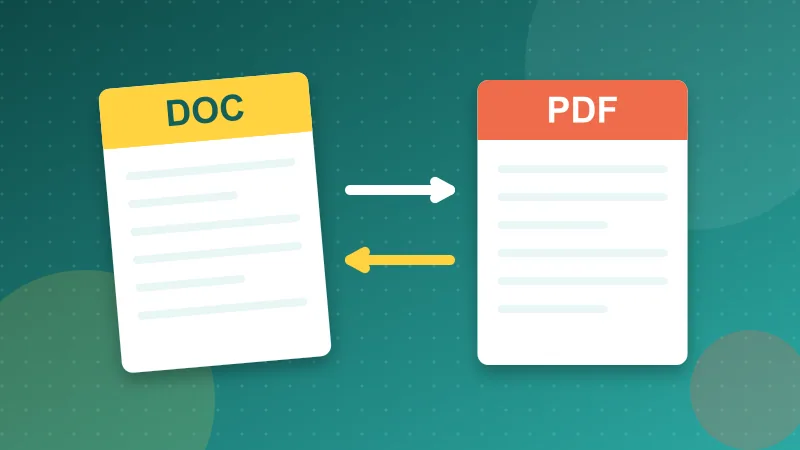
You finish a document and reach the last small decision of the day: attach the .docx or export a PDF? It feels trivial, and most of the time either works. But the wrong choice causes real, repeated annoyances. A carefully designed proposal arrives with the fonts swapped and the tables broken. A contract comes back with someone's edits quietly accepted. A colleague who needed to change two lines has to ask you for "the original". The rule of thumb is simple, and the exceptions are worth knowing.
The short answer
Ask one question: is the other person supposed to change this?
- No, they should read, print, sign or file it. Send a PDF. Invoices, contracts for signature, resumes, reports, tickets, certificates and anything official belong here.
- Yes, they should edit, comment or copy large parts of it. Send the Word file. Drafts, shared templates, documents in review and text an editor will lay out belong here.
Almost every confusing case becomes clear once you answer that question honestly. The rest of this guide covers why, and what to watch for.
What a PDF does well
A PDF is a finished page. It stores the exact position of every letter, the fonts used and the images, so the document looks the same on a phone, a Mac, a Windows laptop and a printer in another country. That fixed layout is its main strength.
- It opens everywhere. Every modern browser and phone can display a PDF without extra software.
- It looks the way you designed it. No missing fonts, no reflowed paragraphs, no images jumping to the next page.
- It discourages casual edits. A PDF can be edited with the right tools, so it is not tamper-proof, but nobody changes a figure by accident.
- It is the expected format for signing and filing. Most portals, HR systems and courts ask for PDF.
What a Word file does well
A Word document is a living text. The layout is calculated each time it opens, based on the fonts and settings of that computer. That is a weakness for presentation and a strength for collaboration.
- Easy editing. Anyone with Word, LibreOffice, Google Docs or Pages can change it.
- Track changes and comments. Reviewers can suggest edits that you accept or reject one by one. This is still the smoothest way to negotiate a text.
- Reuse. Copying a paragraph, restyling headings or turning a document into a template is straightforward.
- Accessibility from the source. Headings and structure are explicit, which helps assistive technology when the document is set up properly.
What goes wrong with each format
Problems people hit with Word files
- Layout shifts. The recipient lacks your font, so a substitute changes line breaks and page breaks. A one-page letter becomes a page and three lines.
- Hidden history. Tracked changes left in the file, unresolved comments, or an old draft pasted in "white text" can expose more than you meant to share.
- Version confusion. Editable files invite edits, and soon there are five copies with slightly different names.
Problems people hit with PDFs
- Editing is awkward. Changing a sentence in a PDF is possible but clumsy. Reworking a document should happen in the source file.
- Scans pretending to be documents. A printed and scanned page is a picture. It cannot be searched or copied unless OCR was applied.
- Odd document properties. Titles such as "Microsoft Word - Document3" show up in browser tabs and file lists. A quick pass with Edit PDF Metadata fixes that and lets you clear your name if you prefer.
Common situations and the right choice
- Job application: PDF, unless the posting asks for Word. Our guide to sending a resume as a PDF covers naming and size.
- Contract for signature: PDF. Agree the wording in Word first, then export the final version and sign it, for example with Sign PDF.
- Contract under negotiation: Word with track changes. A PDF here forces the other side to describe every edit in an email.
- Invoice or quote: PDF. The numbers should not move.
- Article for an editor or website: Word, or whatever format the editor requests. They will need the raw text.
- Report for a manager or client: PDF for the final version. Word if they asked for the draft to comment on.
- Form someone must fill in: a fillable PDF if you can make one, otherwise Word. A flat PDF that people must print, write on and scan is the worst of both worlds.
Sending both without causing confusion
Sometimes the reader needs to see the final layout and also reuse the text. Sending both files is fine if you make the relationship clear:
- Give them the same base name: Annual-Report-2026.pdf and Annual-Report-2026.docx.
- Say in the message which one is the reference. "The PDF is the final version. The Word file is attached in case you need to copy text."
- If the documents differ, for example the Word file is still a draft, do not send them together.
If several documents travel together, such as a cover letter, a proposal and an appendix, a single combined PDF made with Merge PDF is often kinder to the reader than four separate attachments.
How to export a clean PDF from Word
- Accept or reject all tracked changes and delete comments, unless you want them visible.
- Check the page size in layout settings, A4 or Letter depending on the reader. See PDF page sizes explained.
- Use Save As or Export, not Print to PDF, when possible. Export keeps clickable links, headings and bookmarks more reliably.
- Turn on document structure tags if the option is offered. They help screen readers.
- Open the PDF and scroll through it. Click a link, select a sentence, check the last page.
A note on privacy
Both formats can carry more than the visible text. Word files keep revision data and comments. PDFs keep document properties like author and the software used. Before sending outside your organization, remove what does not need to travel. Our article on PDF metadata and privacy explains what is stored and how to clear it.