You send a PDF to a colleague in another country and she tells you the text is cut off at the bottom when she prints it. Nothing is wrong with the file. It is a page size mismatch, one of the most common and least understood printing problems. Once you know how page sizes work, you can predict these problems before they happen.
The page sizes you will meet
There are hundreds of paper sizes, but a handful cover nearly everything.
- A4: 210 × 297 mm (8.27 × 11.69 in). The default almost everywhere outside North America.
- US Letter: 8.5 × 11 in (216 × 279 mm). Slightly shorter and wider than A4. The default in the United States and Canada.
- US Legal: 8.5 × 14 in (216 × 356 mm). Longer than Letter, used for some legal documents.
- A3: 297 × 420 mm. Exactly two A4 pages side by side. Posters, drawings and large tables.
- A5: 148 × 210 mm. Half of A4. Notebooks, booklets and flyers.
The A-series is clever: each size is half of the previous one, with the same proportions. Fold an A3 sheet in half and you get A4. Letter and Legal follow no such system, which is why scaling between them is awkward.
How a PDF stores its page size
Inside the file, each page has a width and a height measured in points. One point is 1/72 of an inch. So A4 is about 595 × 842 points and Letter is 612 × 792. The PDF does not care what country you are in. It simply says "this page is this big", and viewers and printers do their best to put that on paper.
Pages in one PDF do not have to match. A single file can contain a portrait A4 page, a landscape A3 spread and a tiny receipt. That flexibility is useful for scans and drawings, and it is also the reason merged documents sometimes look uneven.
How to check the size of your PDF
In most viewers, open Document Properties (often under File, or with Ctrl+D) and look for the page size. It will list something like "A4" or "8.27 × 11.69 in". If the document has mixed sizes, it often shows the size of the page you are viewing. Scrolling through the thumbnails also reveals differently shaped pages.
Why a PDF prints wrong
When a PDF looks fine on screen but prints badly, the cause is nearly always one of these:
- Scaling. In the print dialog, Actual size prints the page at its true dimensions, so an A4 page on Letter paper loses a strip at the bottom. Fit to page shrinks or enlarges the page so it fits whatever paper is in the printer. For documents moving between countries, Fit is almost always the safer choice.
- Printable area. Printers cannot print right to the edge. Text placed within a few millimetres of the border may be clipped. Margins of 10 to 15 mm are safe for nearly any printer.
- Wrong orientation. A landscape page sent to a portrait tray may be rotated or cropped. Most dialogs have an auto-rotate option.
- Mixed page sizes in one file. The printer may scale each page differently. Check the preview before printing a long file.
Pages that were rotated in the viewer rather than in the file can also behave differently when printed. To fix them for good, use Rotate PDF.
Choosing a size when you create a PDF
Decide before you export, not afterwards. In Word or Google Docs set the paper size in page setup first, then export. If the document is for a recipient in another region, A4 or Letter is often accepted, but ask when it matters, for example for official forms.
When turning pictures into a PDF with JPG to PDF, you can choose A4, US Letter or "same as the image". For printing, choose a paper size. For on-screen viewing, matching the image keeps every pixel without white bars.
Trimming margins
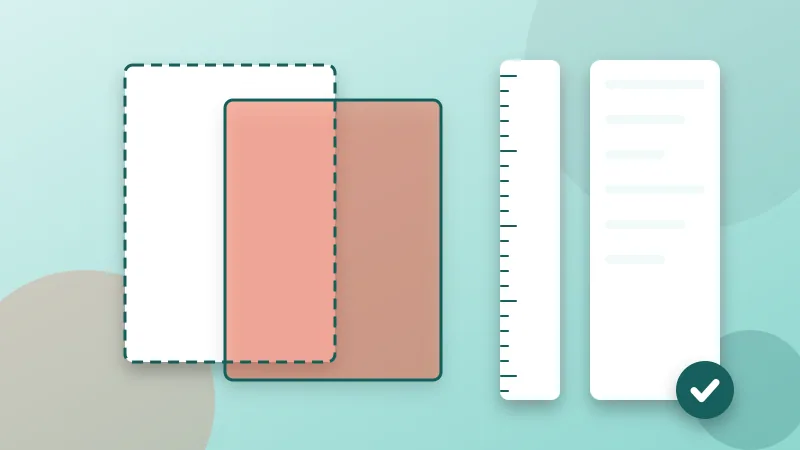
Sometimes the problem is too much white space: a scan with wide borders, or a PDF with generous margins that makes text small on a phone. Crop PDF lets you cut a set number of millimetres from each side of every page and previews the result. Cropping changes the visible page area. It does not rescale the page, so it cannot turn an A4 PDF into a Letter one, and it hides rather than deletes what is outside the new edges.
Converting between A4 and Letter
Honest answer: MyPDF does not rescale pages. The most reliable way to move a document between A4 and Letter is to print it, or save it as a new PDF, with the scaling option set to Fit to page and the target paper size selected. Content ends up slightly smaller or larger, with a little extra white space on one pair of sides. For anything with strict layout, such as forms, going back to the original document and exporting it again at the new size gives a cleaner result than scaling the PDF.
A short checklist before you print or send
- Check the page size in Document Properties.
- Scroll through the thumbnails for odd-sized pages.
- Print one page first with Fit to page selected.
- Keep important content at least 10 mm from the edge.
- Rotate pages permanently instead of relying on the viewer.