Whether you are applying for an apartment or a mortgage, the pattern is the same. Someone asks for a stack of paperwork: pay stubs, bank statements, tax forms, a photo ID. You photograph a few pages on your kitchen table, export a few more from your bank's website, and end up with a dozen files named things like "IMG_4021" and "Statement (3)". Landlords, lenders and property managers see many applications. A clear, well-ordered, single PDF is easier for them to review, and it makes you look organized before they have read a single number. Here is how to build one without fuss.
Start with the checklist, not the scanner
Before gathering anything, get the exact list from the person asking for it. Requirements vary by landlord, property manager, lender and loan type, so avoid guessing. Ask three things:
- Which documents are required, and how recent they must be.
- How they want them delivered: an online portal, a secure link or email attachments.
- The file rules: accepted formats, a size limit and whether one combined file or separate files are preferred.
Applicants are commonly asked for items such as recent pay stubs, bank statements, tax documents like W-2 forms or returns, a government-issued photo ID and, for renters, references or a previous lease. Treat that as a general picture, not a definitive list. Yours may be shorter or longer.
Collect clean copies
A document that is hard to read slows everything down, and sometimes triggers a request to send it again.
- Download, do not photograph, whenever you can. Statements and pay stubs exported from a bank or payroll site are sharp, searchable and small.
- When you must scan, use a flat surface, good light and a scanner app that flattens and crops the page. Our guide to scan settings for PDF covers resolution and color.
- Turn photos into pages. Convert phone pictures of paper documents with JPG to PDF so each page ends up the right way up and on a proper Letter-size page.
- Include every page. Statements often continue on the back or on a second sheet. Missing pages are a common reason for rejection.
If a scan came out sideways, fix it with Rotate PDF before going further.
Put them in a sensible order
A reviewer should be able to find what they need in seconds. A reliable order for most applications:
- Cover page or short summary, if you want one (name, property or loan, contact details).
- Photo ID.
- Proof of income: pay stubs, newest first, then tax documents.
- Bank statements, newest first.
- Anything else requested, such as references or a letter from an employer.
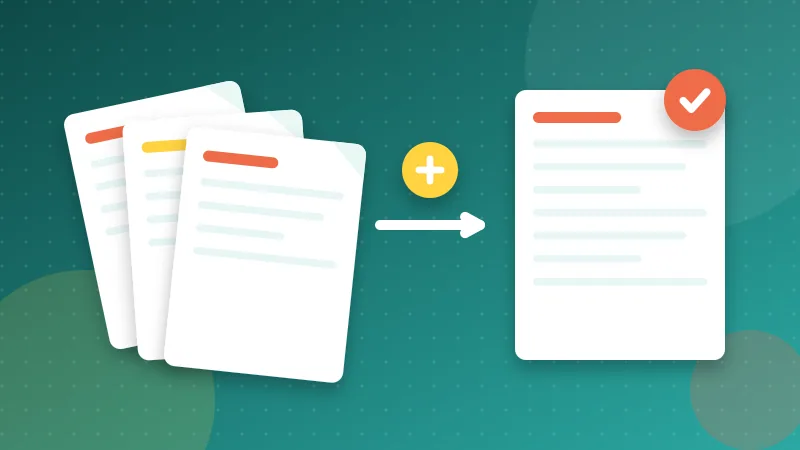
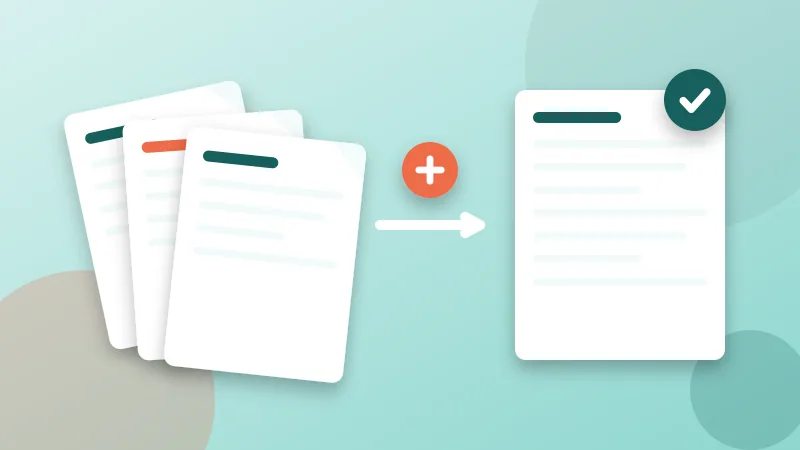
Use Merge PDF: add all the files, drag them into this order and merge. If you only want some pages from a longer statement, trim it first with Remove Pages. If the order is almost right but a page is out of place, Organize PDF lets you rearrange individual pages afterward.
When separate files are requested instead, number the file names so they sort correctly, for example 01-ID.pdf, 02-Pay-Stubs.pdf, 03-Bank-Statements.pdf.
Keep the file size under control
Many online portals and email systems reject large attachments, and phone photos can add up quickly. A combined application often lands between 5 and 30 MB if images are not optimized.
- Merge first, then run the result through Compress PDF.
- Start with the lightest setting. Check that small print, such as account numbers and dates, is still easy to read at normal zoom.
- Aim for under 10 MB, or under whatever limit the portal states.
- If it is still too large, split the application into two or three themed files, such as "income" and "banking".
For more detail, see our guide on reducing PDF size for email, and if a portal refuses your upload, why a PDF upload gets rejected.
Protect your personal information
An application packet contains almost everything an identity thief would want: your full name, address, income, employer and account details. Treat it with care.
- Prefer secure portals and links over plain email whenever you are given the choice.
- Add a password with Protect PDF if you have to send the file by email. Share the password in a text message or phone call, not in the same email.
- Black out what is not needed with Redact PDF, for instance all but the last four digits of an account number. Ask first, because a lender may need to see complete statements. Our guide to redacting a PDF properly explains how to do it so nothing can be recovered.
- Verify who is asking. Confirm the request through a phone number or website you found yourself. Scammers sometimes pose as landlords or loan officers to collect documents.
- Do not leave copies lying around. After the process ends, delete the extra copies from your downloads folder and shared drives.
Name the file clearly
"Scan_0033_final2.pdf" tells a busy reviewer nothing. Use a name that identifies you and the contents:
- Jordan-Lee-Rental-Application-2026-10.pdf
- Jordan-Lee-Income-Documents.pdf
Avoid spaces, special characters and very long names, which some portals handle badly. More ideas in our guide to naming PDF files.
Final check before you hit send
- Open the finished PDF on a computer and scroll through every page.
- Make sure nothing is cut off, upside down or blurry.
- Check that the dates are as recent as the request asks.
- Confirm the size and the file name.
- Check who the message is going to, and whether the portal confirms receipt.
- Keep a dated copy of exactly what you submitted, stored somewhere safe.