The message that every office worker has seen: "Attachment too large." Mail providers cap attachments at around 20 to 25 MB, and some employers and online forms allow far less. When a PDF will not go through, the fix is almost always to deal with its images, not its text, and you can usually do it in under a minute without noticing a difference on screen.
What the limits really are
Common mail services let you attach about 20 to 25 MB per message, but the number on the label is not the whole story. Email converts attachments into a text-friendly format, which makes them roughly a third bigger in transit. A 20 MB PDF can therefore be rejected by a system that advertises a 25 MB limit. Company mail servers, applications portals and government websites often set their own, lower limits, sometimes as small as 2 or 5 MB.
A sensible rule: if the limit is 10 MB, aim for 7 or 8. Hitting the limit exactly is a gamble.
Why are some PDFs so large?
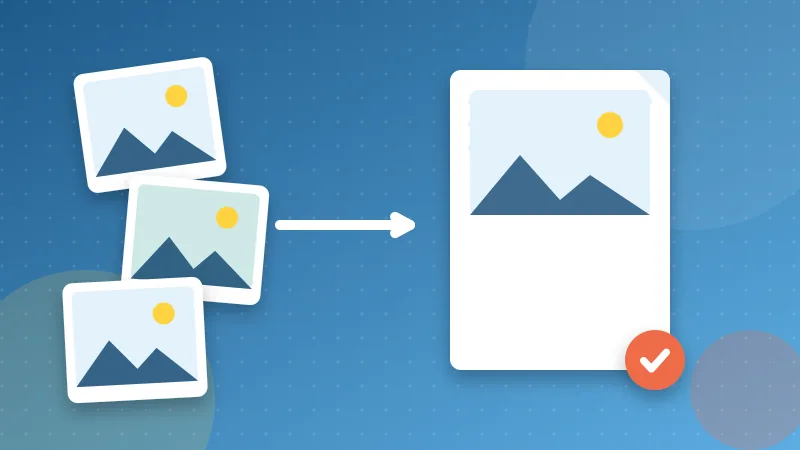
Text is tiny. A page of pure text weighs a few kilobytes. Photos and scans are what make a PDF heavy: a single phone photo can be 4 MB, and a 20-page scan saved at high resolution easily passes 50 MB. So when a PDF is large, the real question is how big its images are. Our guide to why PDFs get so large walks through the seven usual causes if you want to diagnose a specific file.
The quick way
- Open Compress PDF and choose your file.
- Pick Balanced. It lowers image quality and size just enough that you rarely notice.
- Compress and compare the sizes shown. The tool tells you exactly how much space you saved.
- Open the result and check a page with small print before you send it.
The normal mode re-encodes the images inside the PDF and leaves the text alone, so it stays sharp and searchable. Everything runs in your browser, so a confidential document is not uploaded to anyone.
Which level should you pick?
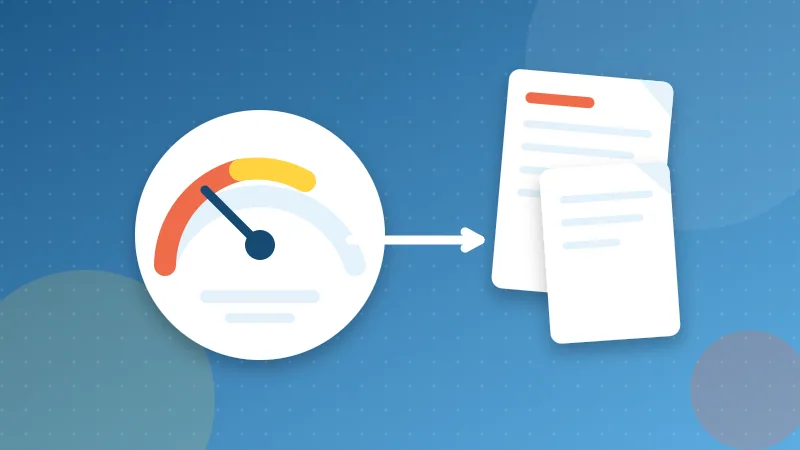
- Light when image quality matters, such as a portfolio, a brochure or a file that will be printed.
- Balanced for almost everything else: reports, invoices, scanned letters.
- Strong when you just need it to fit, for example a scanned form for an upload portal with a tiny limit.
If the file barely shrinks, tick the option that converts pages to images. It gives the smallest result, but it turns text into pictures, so the words can no longer be selected or searched. Keep your original for that reason.
When compression is not enough
- Split it. Send two emails with Split PDF if both halves matter, or extract only the pages the recipient needs.
- Use a link. Upload the file to a cloud drive and email the link. This is better for very large files and for files you want to update later.
- Scan smarter next time. 150 to 200 DPI is plenty for reading. Black and white at 300 DPI keeps text sharp at a fraction of the size. See our scan settings guide.
- Shrink pictures before you build the PDF. If you make a PDF from photos with JPG to PDF, reduce the photos first. The converter embeds them as they are.
A word of caution
Compression of images is permanent in the saved file. Always keep the original, and do not compress documents that must stay exact, such as signed contracts or print-ready artwork. When in doubt, compress a copy and keep both.