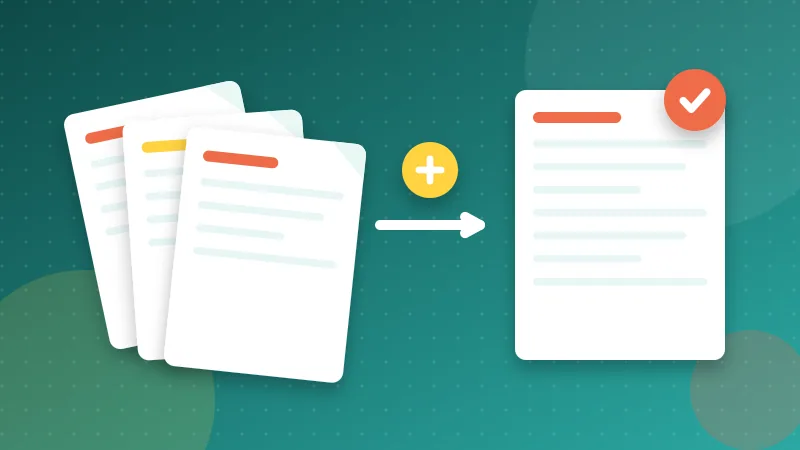
A job application, a stack of invoices, three chapters of a report written by three different people. At some point you end up with several PDFs that should really be one. Merging them takes about a minute once you know how, and a few small habits decide whether the result looks professional or like a pile of mismatched pages.
Why merge PDFs at all?
One file is easier to send, easier to print and much harder to lose. A recruiter opens a single attachment instead of five. An accountant receives one document per month instead of forty loose scans. A client reading a proposal does not have to wonder whether the pricing page is in the file called "final" or "final2".
A single document also behaves better on screen. You can search it once, scroll it continuously and refer to "page 14" without anyone asking which file you mean.
Step by step
- Open Merge PDF and add your files. You can select several at once, or drop them onto the page.
- Drag them into the order you want. The top file becomes the first pages of the result. Use the arrow buttons if dragging is awkward on a touch screen.
- Remove any file you added by mistake. If you remove one by accident, an Undo button appears for a few seconds.
- Press Merge PDF files and download the combined document.
The merge happens in your browser, so nothing is uploaded. That matters when the files are contracts, payslips or medical documents, and it also means there is no waiting for an upload to finish.
Will merging reduce quality?
It should not. A proper merge copies each page as it is, so text stays sharp and photos keep their detail. Quality problems usually appear when a tool quietly re-saves everything as images. If your merged file looks soft, or you can no longer select the text, that is what happened.
A quick check after merging: zoom to 200 percent on a page that has small print, and try to select a sentence. If both look the same as in the original file, nothing was lost.
Get the order right
Scanned files often have names like scan_10 that sort before scan_2. Rename them with leading zeros (01, 02, 03) before you add them, or arrange them on screen. For a long document, think of the final structure first: cover, summary, main body, appendices. Build the merge in that order and you will rarely need to move anything afterwards.
If you spot a misplaced page after merging, you do not have to start again. Open the result in Organize PDF, drag the page where it belongs and save. You can delete blank pages and straighten sideways ones in the same screen.
Mixed page sizes and orientations
PDFs do not force every page to be the same size. Merge an A4 contract with a US Letter invoice and a landscape spreadsheet printout and you get a document where pages differ. On screen this looks slightly uneven. When printed, the printer may scale pages differently.
If the combined file will be printed, check the page sizes first (our guide to PDF page sizes explains how), and rotate stray landscape pages with Rotate PDF if that suits the layout.
When the result is too big
Ten scans of 8 MB each make an 80 MB file. Most email systems will refuse it. After merging, run the result through Compress PDF. For scans and photo-heavy documents the reduction can be large. If you want to understand where the weight comes from, read why PDFs get so large.
Merging first and compressing last is also better than compressing every file separately, because you only reduce quality once.
Things a merge does not do
- Password-protected files. A file that needs a password to open cannot be merged. Remove the password in the program that created it first.
- Bookmarks. Page content is copied. The outline (bookmark list) from each original file is not combined into one outline.
- Page numbers. Numbers printed on the original pages stay as they were. A merged document made of three files can read "1, 2, 3, 1, 2, 3". Add fresh numbers across the whole file with Add Page Numbers and choose a format such as "Page 4 of 18".
A short checklist
- Name or arrange the files in the order you want.
- Merge and open the result immediately.
- Scroll through once: right order, right orientation, nothing missing.
- Number the pages if the document is long.
- Compress if size matters, then name the file clearly.