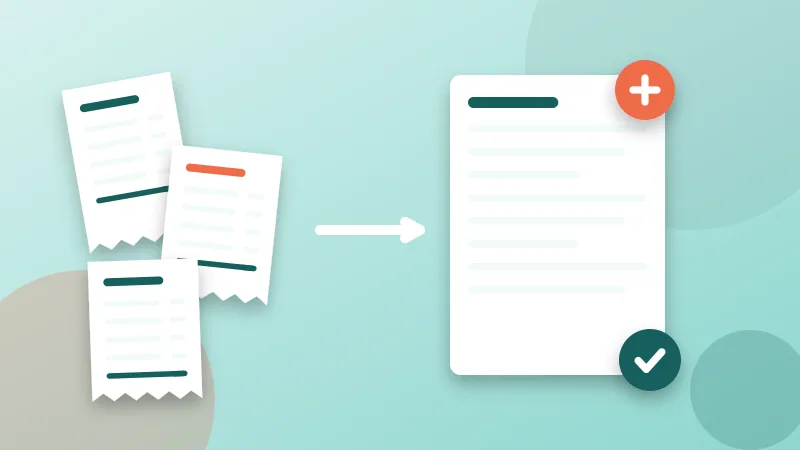
Paper receipts have a talent for disappearing. They fade in wallets, crumple in coat pockets and turn up in March, unreadable, when the accountant asks for them. Whether you are filing a monthly expense claim at work or keeping records as a freelancer, the fix is the same: turn receipts into well-organized PDFs as soon as you get them. It takes less time than searching for one lost receipt, and a tidy PDF is easy for whoever has to approve or check it.
Why bother converting receipts to PDF
- Thermal receipts fade. The shiny paper used by most shops and restaurants loses its print with heat, light and time. A photo taken today is often more durable than the original.
- Finance teams prefer one document. A single PDF with every receipt for a trip is easier to review than fifteen attachments.
- Searching beats rummaging. Named and dated files can be found in seconds.
- Backups are possible. Paper in a shoebox has no second copy.
A five-minute routine
- Photograph every receipt the day you get it. Lay it flat on a dark surface in good light, hold the phone parallel and fill the frame. Unfold long receipts fully. For very long ones, take two overlapping photos.
- Keep the photos in one album or folder named for the current month or trip.
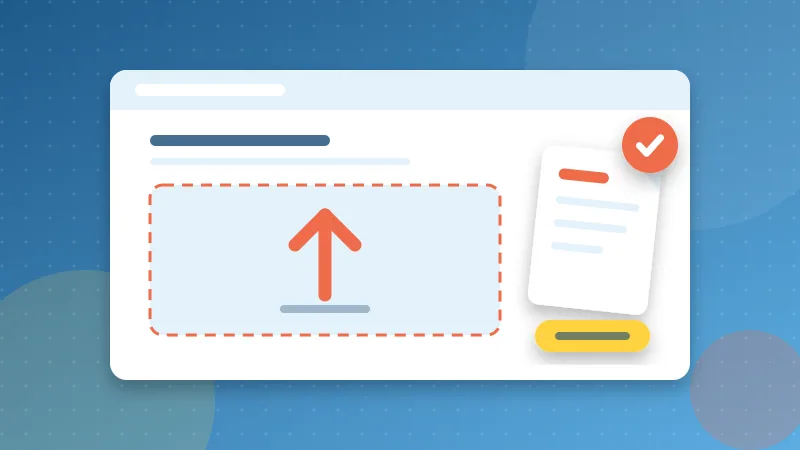
- At the end of the week or trip, convert them. Open JPG to PDF, add the photos, sort them by date and convert to one PDF.
- Name the file using a fixed pattern, explained below, and save it to your records folder.
- Delete the loose photos once the PDF is checked, so you do not keep two versions.
The conversion happens in your browser and the receipts are not uploaded, which is reassuring when they show card digits, addresses or what you bought.
Making receipts readable
Accounting staff need four things on every receipt: the vendor, the date, the amount and the tax. Before converting, zoom into each photo and check that these are legible.
- Faded print: photograph it in bright, indirect light. Grayscale often shows faint text better than color.
- Curled receipts: press them flat under a glass sheet or hold the ends down outside the frame.
- Tiny receipts: on a full A4 page they look lost. In JPG to PDF, choose "same as the image" as the page size, or a small margin, so the receipt fills the page.
- Card slips and itemized bills: if a restaurant gave you both, capture both. Some policies require the itemized one.
Organizing one PDF per claim
For an expense report, match the PDF to the claim:
- Sort receipts in the same order as the lines of your expense form, usually by date.
- Add page numbers with Add Page Numbers, using the "Page 1 of N" format. You can then write "receipt on page 4" on the form, and the reviewer can confirm nothing is missing.
- If you also have PDF invoices, such as a hotel bill or flight confirmation, combine them with the receipts in Merge PDF so everything travels in one file.
- Keep the PDF within your company's upload size limit. If needed, run it through Compress PDF.
Naming and folders that hold up over years
Put the date first, in year-month-day order, so files sort chronologically on any computer:
- 2026-09-trip-casablanca-receipts.pdf
- 2026-10-03_office-supplies_bureau-plus_342MAD.pdf (for single receipts)
A simple folder structure is enough: one folder per year, a subfolder per month or per claim. Freelancers often add a to-claim and claimed folder to track what has already been reimbursed or deducted. See how to name PDF files for a fuller system.
Can you throw the paper away?
It depends on where you live and who is asking. Many tax authorities accept digital copies of receipts if they are complete, legible and stored reliably. Others, or particular employers and auditors, still require originals for certain expenses. Retention periods also vary, often several years. Check your company's expense policy and your local tax authority's guidance, or ask your accountant, before shredding anything important.
A cautious middle ground: keep the PDFs as your working copy and the paper in one labeled envelope per year until the retention period is over.
Back up and keep it private
- Store the PDFs in two places, for example your computer and an encrypted cloud folder or external drive.
- Receipts reveal more than you think: locations, habits, partial card numbers. Be careful who you share the folder with.
- Before sending a receipt PDF outside your organization, consider clearing its document properties with Edit PDF Metadata.