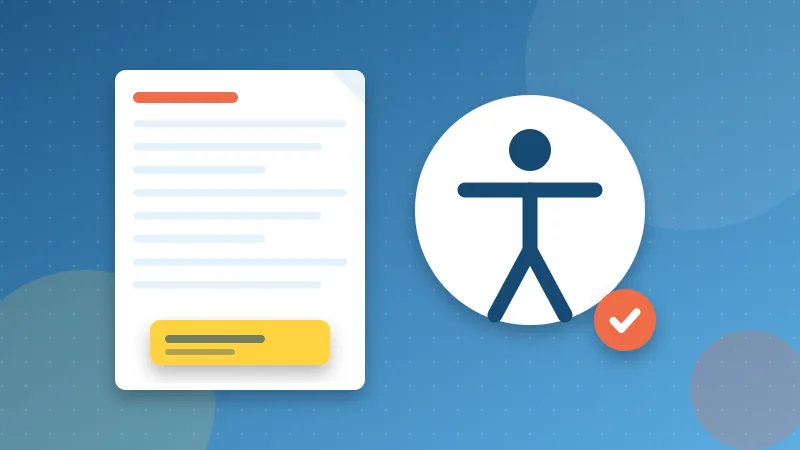
Many people read PDFs without looking at them in the usual way. Some listen with a screen reader, some zoom to 300 percent, some navigate by keyboard only or read on a braille display. For them, a PDF that is just a picture of a page, or a jumble of unlabeled text, is a closed door. Making documents accessible is also increasingly a legal expectation for public bodies, schools and many businesses. The good news is that most of the work happens in the program you write in, and a few habits get you most of the way.
What makes a PDF accessible
An accessible PDF contains more than the visible page. It also contains a hidden structure, called tags, that tells assistive technology what each part is: this is a heading, this is a list, this image means "Sales grew 12 percent in 2026", this table has these column headers. It defines a reading order, so a two-column page is read column by column rather than line by line across. And it declares the document's language and title.
The international standard for this is PDF/UA (ISO 14289), and web content guidelines such as WCAG describe the same principles. You do not need to read either to make a big difference.
Start in the source document
Word, Google Docs, LibreOffice, InDesign and most other authoring tools can export tagged PDFs, but they can only tag what you structure. In the source file:
- Use built-in heading styles (Heading 1, Heading 2) instead of making text bigger and bold. Screen reader users jump between headings the way sighted readers skim.
- Use real lists from the list buttons, not typed dashes.
- Add alternative text to images that carry meaning. Describe the point, not the pixels: "Bar chart: costs fell by a third after 2024" helps more than "chart". Mark purely decorative images as decorative.
- Build simple tables with a header row marked as such. Avoid merged cells and tables used only for layout.
- Write meaningful link text. "Download the 2026 price list" rather than "click here".
- Use enough contrast and do not rely on color alone. "Items in red are overdue" fails for color-blind readers. Add a word or symbol.
Export the PDF with tags
When exporting, choose the option that keeps structure:
- Word (Windows): File, Save As, PDF, then Options, and make sure "Document structure tags for accessibility" is checked.
- LibreOffice: File, Export as PDF, and check "Tagged PDF" (and "PDF/UA" if available).
- Google Docs: its PDF download has historically produced limited tagging. For important documents, export via Word or LibreOffice instead.
Avoid "Print to PDF" for accessible documents. Printing flattens the page and throws the structure away.
Set the title and language
Screen readers announce the document title when a file opens. A file whose title is "Document1" or missing forces people to guess. Set a real title such as "Tenant handbook 2026". With Edit PDF Metadata you can check and change the title, subject and keywords in a few seconds.
The document language tells the screen reader which pronunciation rules to use. Set it in your authoring program (the proofing or document language) before exporting. Mixed-language documents should mark passages in other languages where the program allows it.
Scanned documents are a special problem
A scan is an image. To a screen reader, a scanned contract is an empty page, or at best "image". Before such a document can be accessible, it needs OCR to add real text, and then tagging. If you publish forms or letters regularly, publish them from the source document instead of scanning printouts.
A quick test: try to select text in the file. If nothing highlights, it is image-only. PDF to Text will also tell you when a file has no selectable text.
Quick checks anyone can do
- Select and copy text from a few pages. If it pastes as gibberish or in a strange order, assistive technology will struggle too.
- Extract the whole text with PDF to Text and read it top to bottom. It is a rough preview of the order in which content may be read. Columns that interleave or headers that land mid-paragraph are warning signs.
- Zoom to 200 to 400 percent and see whether the text stays sharp. Text that blurs is probably an image.
- Tab through the document if it has links or form fields. Each should be reachable and make sense on its own.
- Check the title shown in your browser tab when you open the file.
For a proper audit, use a dedicated checker. The free PAC (PDF Accessibility Checker) and the accessibility checker built into Adobe Acrobat Pro are common choices, and testing with a real screen reader such as NVDA (free on Windows) or VoiceOver (built into Apple devices) is the most revealing check of all.
Editing tools and tags
A word of warning that applies to most PDF tools, including ours. Operations that rebuild a document from its pages, such as merging, splitting, extracting or reordering, generally do not carry the tag structure across. The visible pages are perfect. The hidden structure may be lost.
So do assembly work in the source wherever you can: combine chapters in your word processor, then export once as a tagged PDF. If you must assemble PDFs afterward, recheck the result with an accessibility checker. Small edits such as setting the title or adding page numbers help readers, but they are not a substitute for structure.
A short checklist to keep
- Headings use heading styles.
- Images have meaningful alt text or are marked decorative.
- Tables have header rows and no layout tricks.
- Links describe their destination.
- Color is never the only signal, and contrast is strong.
- Exported as a tagged PDF, not printed to PDF.
- Title and language are set.
- Text is real text, not a scan.
- Checked with a checker or a screen reader before publishing.