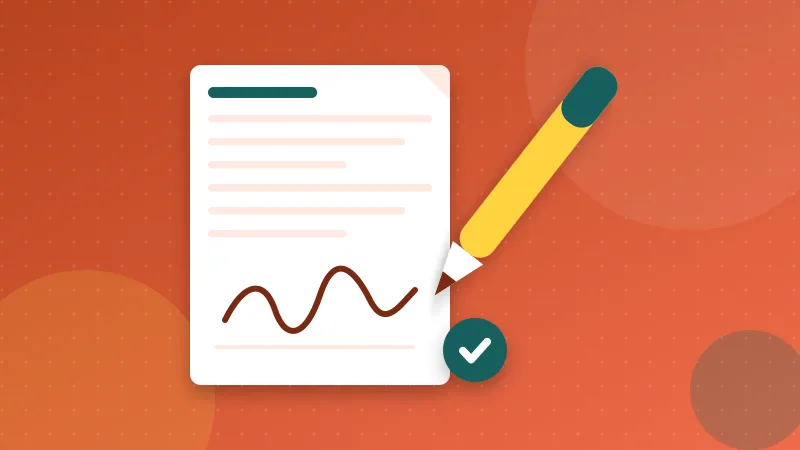
Print, sign, scan, send: four steps and a trip to the printer for one signature. You can skip all of it. Adding a signature image directly to the PDF is quick and perfectly acceptable for many everyday documents, as long as you know what you are creating and what the other side expects.
What you need to know first
There are two different things people call a "digital signature". One is a visual signature, an image of your handwriting placed on the page, which is what we cover here. The other is a certificate-based signature, which cryptographically seals the document and is issued by a trust provider. Many forms, approvals and agreements accept the first. Some legal or government processes demand the second. Our article on electronic versus digital signatures explains the difference in more depth.
The practical advice is simple: before you sign anything important, send the other side one line asking whether an electronic signature image is fine. It takes ten seconds and prevents you from doing the job twice.
Sign in four steps
- Open Sign PDF and choose your document.
- Create your signature: draw it with a mouse or finger, type your name in a handwriting style, or upload a photo of your own signature.
- Drag the signature to the signature line and resize it with the slider. You can browse pages to find the right one.
- Press Sign PDF and download the signed copy. Tick the option first if you want the signature on every page.
Get a signature that looks real
Drawing with a mouse looks stiff, and a typed name in a script font looks like a font. The best result comes from signing a sheet of white paper with a dark pen, photographing it flat in good light, and uploading the picture with the transparent-background option switched on. Do it once, keep the image somewhere safe, and reuse it for every document.
On a phone or tablet, drawing with your finger or a stylus works well if you take your time and use the full width of the pad.
Where to place it
- On the signature line, not over the printed text.
- At about the size you would sign by hand. A huge signature looks odd.
- On each page only when the document asks for initials or signatures on every page.
Look at the whole page after placing it. A signature that overlaps a line of text can make the page look tampered with, even when it is not.
Keep your signature safe
A signature image is easy to copy, so treat it like a password. Use a tool that never uploads it. Sign PDF works in your browser, and the signature exists only in the open tab, so nothing leaves your device. Also avoid posting a high-resolution picture of your signature on public websites or social media.
Before you send
Check the page you signed. Then consider adding page numbers to multi-page agreements, so no one can swap a page without it showing. Finally, clear stray author details with Edit PDF Metadata if the file carries names or software details you would rather not share.
Keep the signed file and the email that shows when it was sent. If anyone questions the document later, you will have both.