Sooner or later, a password-protected PDF outlives its reason for being protected. Maybe you locked a contract months ago and now need to merge it into a bigger file. Maybe a colleague sent you a secured report and, once you're past the prompt, you'd rather just have a normal copy to work from. Either way, you hit the same wall: most PDF tools — merging, splitting, editing, even printing a clean copy — refuse to touch an encrypted file until the password comes off.
This guide covers how to unlock a PDF properly, using the password you already have, what actually happens to the file when you do, and — since this comes up a lot — what your options genuinely are if the password isn't something you can put your hands on.
What "Unlocking a PDF" Actually Means
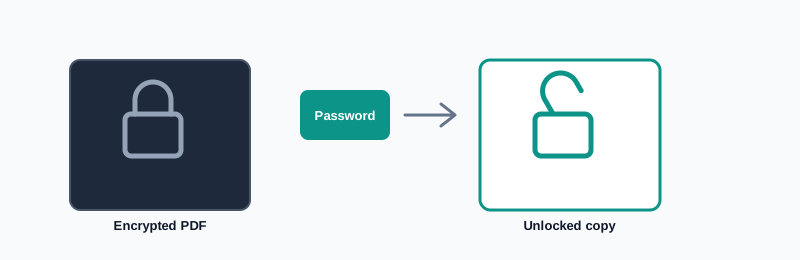
Worth being precise about this up front, because the phrase gets used loosely. Unlocking a PDF means decrypting it with its correct password, which strips out the encryption and hands you back an ordinary file that opens for anyone, no prompt required.
It does not mean guessing, brute-forcing, or otherwise defeating a password you don't know. My PDF's Unlock PDF tool needs the real password before it will do anything — that's not a limitation so much as the entire point of encryption working correctly. A tool that could strip protection without the password would make the password meaningless in the first place.
Why People Need to Unlock a PDF
A protected document rarely stays protected forever, and the reasons to remove that protection are pretty ordinary:
- The sensitive window has passed. A quarterly report protected before a public earnings call doesn't need a password anymore once the numbers are public.
- It needs to be combined with other files. Merging PDFs requires every source file to be unencrypted first — a protected contract has to be unlocked before it can join a larger client packet.
- It's being migrated somewhere new. Moving a batch of old protected files into a new document-management system is much easier once they're no longer individually password-gated.
- You received it protected and need to actually work with it. A vendor sends over a secured invoice; once you've opened it once, you may want an unrestricted copy to file alongside everything else.
In every one of these cases, unlocking isn't the end goal — it's the step that unblocks whatever you actually need to do next.
Before You Start
You need exactly one thing: the current password that opens the file. There's no way around this, and that's by design — see the section below on what to do if you genuinely don't have it.
It's also worth knowing that a PDF can carry two different kinds of password, which behave differently. That distinction trips people up more often than the actual unlocking process, so it's covered in detail further down.
How to Unlock a PDF, Step by Step
Step 1: Open the Unlock PDF Tool
Go to My PDF's Unlock PDF tool. Nothing to install, no account required — the upload area is right there on the page.
Step 2: Upload the Protected File
Drag your PDF into the upload area, or click to browse and select it. The file can be any standard PDF encrypted with a password — the tool doesn't need to know in advance how it was protected.
Step 3: Enter the Current Password
Type the password that currently opens the document. This is the one part of the process where a typo causes real friction, so take an extra second here.
Step 4: Click "Unlock PDF"
The server verifies the password and, if it's correct, decrypts the file. This typically takes just a couple of seconds, regardless of the document's length.
Step 5: Download Your Unlocked File
You'll get back a fresh copy of the document with no password and no open restriction. Your original protected file isn't altered — the unlocked version is a separate output, which is worth remembering if you still need the protected copy for some other purpose.
Two Kinds of PDF Passwords, and Why It Matters
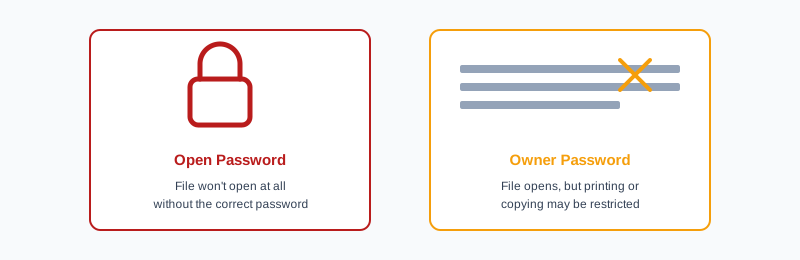
Most people assume a PDF has one password. In practice, the PDF format actually supports two, and they do different jobs:
- An open password (user password) — the one that gates access to the file entirely. Without it, the document won't open in any viewer at all. This is the one most people mean when they say a PDF is "password-protected."
- An owner password (permissions password) — this one doesn't block opening the file at all. Instead, it restricts what a reader can do once it's open: printing, copying text, editing, or extracting pages, depending on what was disabled.
A file can have either, or both. Practically, if you can open the document at all without being prompted, any restrictions you're running into — a disabled print button, text that won't copy — are owner-password permissions, not an open password. Removing protection with the correct password clears both kinds of restriction in a single pass, so you don't need to figure out in advance which type you're dealing with — you just need the password that lets you into the file to begin with.
What If You Don't Know the Password?
This is worth addressing directly, because it's a genuinely common situation, and the honest answer isn't always the one people are hoping for.
If the PDF is encrypted and you don't have its password, there is no legitimate tool — this one included — that will simply reveal or bypass it. That's not a missing feature; it's what encryption is supposed to guarantee. A password-recovery shortcut would mean the protection never actually protected anything.
What's actually worth trying, roughly in order:
- Check where the password would reasonably be. A password manager, the original email that shared the file, a chat thread, or a physical note from when the document was first protected.
- Ask whoever protected it. If someone else secured the file — a vendor, a client, a colleague — they're the fastest path to the actual password. Most people are happy to resend it.
- Check if you set it yourself and reused a pattern. Not a great security habit generally, but if you have a personal go-to password or a small set of variations you tend to use, it's worth trying those before giving up.
- Accept it if it's genuinely gone. If you protected the document yourself and truly cannot recover the password, encrypted PDFs are built specifically so that this situation has no back door. Treat it as a lesson for next time — our guide to password-protecting a PDF covers how to keep a usable record of any password you set going forward, so this doesn't happen twice.
Common Mistakes When Unlocking a PDF
Assuming a typo means the tool is broken. An incorrect password produces a clear rejection — it's almost always a mistyped character, a stray space, or Caps Lock, not a fault with the process.
Not realizing there's a separate owner password. Occasionally someone unlocks a file expecting print restrictions to already be gone, only to realize afterward they'd actually entered a permissions password rather than the open password — or vice versa. Either one, entered correctly, removes both kinds of restriction at once, so this usually resolves itself on the next attempt.
Uploading the wrong version of the file. If a document has been shared and re-shared, it's easy to grab an older or different copy from a downloads folder. Double-check you're unlocking the actual file the password belongs to.
Forgetting the original stays protected. Unlocking produces a new file; it doesn't rewrite the protected one in place. If you're looking for the original afterward, it's still sitting wherever it was, still password-gated.
Sharing the unlocked copy somewhere it shouldn't go. Once a document is unlocked, it's just a normal file — anyone who gets a copy can open it. If the content is still sensitive even though the "sensitive window" for that specific password has passed, consider re-protecting it before sending it onward.
Unlocking vs. Protecting vs. Watermarking
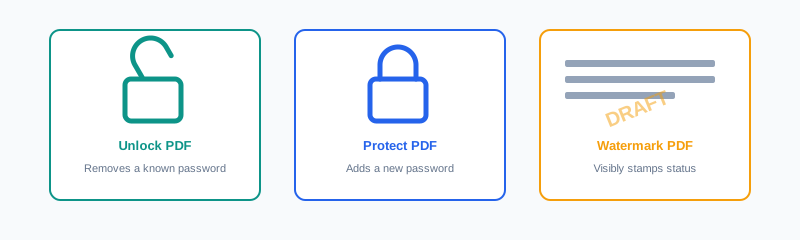
These three security-adjacent tools get confused with each other fairly often, so here's the quick distinction:
| Tool | What it does | Use it when |
|---|---|---|
| Unlock PDF | Removes an existing password, given the current one | The file no longer needs to be restricted, or needs to be processed by another tool first |
| Protect PDF | Adds a new password to an unprotected file | A document needs to be restricted before it's shared |
| Watermark PDF | Stamps visible text across every page | The document's status (draft, confidential) needs to be obvious at a glance, separate from access control |
It's common to use more than one of these in sequence. A typical case: unlock an old contract so it can be merged into a client packet, then run the finished packet back through Protect PDF before sending it out — see our guide on adding a watermark if the packet also needs a visible "confidential" stamp on top of that.
Tips & Best Practices
- Unlock before you do anything else. If a protected file needs merging, splitting, rotating or any other edit, remove the password first — nearly every other tool expects an unencrypted starting file.
- Keep a record of passwords you remove. If there's any chance you'll need to reapply the same protection later, save the password somewhere secure before you unlock — not after.
- Only unlock documents you're actually authorized to modify. A password exists because someone decided the document needed restricting. Unlocking your own files, or files you've been given explicit permission to modify, is the intended use — unlocking someone else's confidential document without permission isn't.
- Re-protect if the content is still sensitive. Removing a password because you need to edit or merge a file doesn't mean the content stopped being sensitive. If it did, run the result back through Protect PDF before it goes anywhere.
- Double-check the file before deleting your protected original. Confirm the unlocked copy opens correctly and contains what you expect before you clean up older versions.
Key Takeaways
- Unlocking a PDF removes its password using the password you already have — it's decryption, not cracking.
- A missing password can't be bypassed by this or any legitimate tool; your real options are checking where it's stored, asking whoever set it, or accepting it's genuinely gone.
- PDFs can carry an open password and a separate owner (permissions) password — entering the correct password clears both.
- Unlocking is usually a means to an end: it clears the way for merging, editing, or migrating a file, not a final step on its own.
- Re-protect a file afterward if its content is still sensitive, even once the original reason for locking it has passed.
Related Reading
If you're deciding whether a document needs a password in the first place, how to password-protect a PDF covers choosing a strong password and knowing what encryption actually guarantees. For combining an unlocked file with others, how to merge PDF files is the natural next step. For more guides like this one, browse the full blog or the complete tools directory. For background on how PDF encryption works at a technical level, see Wikipedia's entry on PDF.
Have a protected file to open up? Use the Unlock PDF tool and get an unrestricted copy in seconds.
Comments
Comments aren't open on the blog yet. In the meantime, share this article using the buttons above, or reach us directly at contact@mypdf.tech.