Someone in a meeting says "see page 12" and everyone opens the same shared PDF — except the file has no page numbers at all, so "page 12" means scrolling and guessing rather than a quick jump to the right spot. It happens constantly with reports assembled from several sources, since none of them arrive with numbering that lines up once they're combined.
Fixing it takes one pass through a numbering tool, but a couple of small decisions — where the numbers should sit, what number they should start from, and whether a cover page should be part of the count — are worth getting right the first time, since none of them are easy to undo afterward. This guide covers all of that, plus a workaround for the one thing a simple numbering tool typically can't do on its own: leaving a single page unnumbered.
What Adding Page Numbers Actually Does
A page numbering tool stamps a small "Page X of Y" label onto every page of a PDF, at a position you choose, without altering anything else on the page. My PDF's Add Page Numbers tool applies this as an overlay — a label placed on top of the existing page — rather than editing or rebuilding the document's actual content underneath it.
That overlay detail is worth knowing because it means numbering works regardless of what's on the page underneath. A page numbering stamp doesn't need to read or understand a document's content the way, say, text extraction does — it just places a label at a fixed spot on every page. That's why it works identically on a scanned document, a digitally created report, or a mix of both in the same file.
Why Page Numbers Matter More Than They Seem
It's a small addition, but it solves a specific, recurring problem:
- Precise references. "See page 12" only works if page 12 is actually labeled page 12 — otherwise everyone's stuck counting or scrolling to find the spot someone else is describing.
- Continuous numbering after merging. A report merged from three separately written sections usually has three separate numbering sequences, or none at all — adding numbers afterward gives the whole thing one continuous count from start to finish.
- Citing a document formally. Contracts, academic papers and legal filings are routinely referenced by page number — "see clause 4 on page 7" only makes sense if the page is actually numbered.
- Reading assignments and course materials. "Read pages 4 through 9" is a common instruction that simply doesn't work on an unnumbered handout.
- A finished, professional feel. It's a small detail, but an assembled document without page numbers tends to read as unfinished, even when the content itself is complete.
Before You Start: Two Settings Worth Understanding
Choosing a Starting Number
Most documents should start at 1 — but not all of them. If the file you're numbering is one section of a larger work (say, an appendix that should continue from page 48 of the main report), set the starting number to pick up exactly where the rest of the document left off, rather than restarting the count at 1.
Choosing a Position
Add Page Numbers places numbers at bottom-center or bottom-right. Neither is objectively "correct" — it's mostly a matter of convention:
- Bottom-center is the more common default for general reports, manuscripts and informal documents.
- Bottom-right is a common convention in formal business and legal documents, where it also happens to sit clear of any binding or hole-punching on the left edge.
If you're not sure which to pick, match whatever convention the rest of a series or organization already uses — consistency across documents matters more than which specific option you land on.
How to Add Page Numbers, Step by Step
Step 1: Open the Add Page Numbers Tool
Go to My PDF's Add Page Numbers tool. No account or installation required.
Step 2: Upload Your PDF
Drag your file into the upload area, or click to browse and select it.
Step 3: Set the Starting Number and Position
Choose which number the first page should display, and whether numbers should appear bottom-center or bottom-right.
Step 4: Click "Add Page Numbers"
Every page gets stamped in one pass, typically within a few seconds, regardless of document length.
Step 5: Download Your Numbered File
Your PDF now has a consistent "Page X of Y" sequence running through it, ready to share, print or file.
A Practical Example: Numbering a Merged Report Continuously
Say three department leads each wrote a section of a quarterly report as a separate file, and you need to combine them into one document with a single, clean page count for the final version going to leadership.
- Merge the three section files into one document, in the order they should appear.
- Open the merged file and confirm the page order and total page count look right before numbering.
- Run it through Add Page Numbers, starting at 1, in whichever position matches how your organization's other reports are numbered.
- Download the final file — instead of three documents each with their own (or no) numbering, there's now one continuous sequence from the first page to the last.
Doing it in that order — merge first, number last — means the "of Y" total in every stamp is accurate for the finished document, rather than for whatever page count an individual section happened to have on its own.
The Unnumbered Cover Page Trick
Here's something worth knowing before you number a document with a title or cover page: this tool numbers every page it's given — there's currently no built-in option to skip just the first page while numbering the rest. A lot of formal documents, though, are conventionally numbered so the cover page itself carries no visible number, even though it's technically page one.
The workaround is straightforward, and it's a genuinely common workflow:
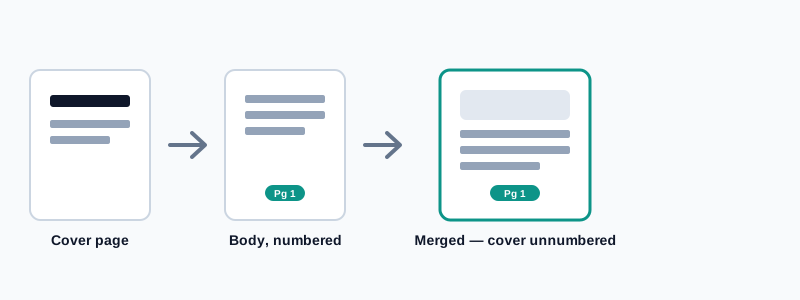
- Use Extract Pages to pull the cover page out into its own file, and a second file containing everything after it.
- Run Add Page Numbers on the second file only, starting the count at 1.
- Merge the untouched cover page back in front of the newly numbered body.
The result is a document where the cover carries no number, and the first content page after it is cleanly labeled "Page 1" — exactly the convention used in most formally published reports and manuscripts.
Common Mistakes When Numbering a PDF
Numbering before finishing other edits. If you still need to merge, reorder, or remove pages, do that first. Numbering an unfinished document means redoing the whole step once the structure changes.
Forgetting a protected PDF needs unlocking first. An encrypted file can't be numbered until its password is removed with Unlock PDF — attempting to number a locked file will simply fail.
Expecting a custom format. Numbers apply in a fixed "Page X of Y" style — Roman numerals, "p. 4," or a custom prefix aren't currently supported formats here.
Assuming numbers update automatically. If pages are added or removed after numbering, the existing labels don't recalculate on their own — re-run the tool on the updated document to keep the sequence accurate.
Not double-checking the final page count first. A leftover blank page from an earlier merge or scan throws off the "of Y" total quietly — worth a quick scroll-through before numbering, not after.
What This Tool Handles Well (and Where It's Simpler by Design)
Being upfront about scope is worth more than pretending a lightweight tool does everything a full desktop publishing suite does:
| Capability | Add Page Numbers | Typical desktop software |
|---|---|---|
| Custom starting number | Yes | Yes |
| Bottom-center / bottom-right placement | Yes | Yes, plus more position options |
| Custom formats (Roman numerals, prefixes) | Not currently | Often |
| Skip a specific page (like a cover) | Not directly — see the workaround above | Sometimes built in |
| No installation, works from any device | Yes | No, usually desktop-only |
For the overwhelming majority of reports, assignments and merged documents, a straightforward numbered sequence with a chosen starting point covers what's actually needed — the workaround above closes the one real gap for anyone specifically wanting an unnumbered cover page.
Tips & Best Practices
- Number last. Treat page numbering as the final formatting step, after merging, reordering and removing pages are already done.
- Match your organization's convention. Consistency across a set of related documents matters more than which specific position you choose.
- Use the starting number for multi-part documents. If a file is one section of something larger, set the start number to continue the existing sequence rather than restarting at 1.
- Keep an unnumbered original. There's no removal feature here — hang onto the original file if you might need an unnumbered version again later.
- Recheck the page count after any further edit. Adding, removing or reordering pages after numbering means re-running the tool to keep the sequence correct.
Key Takeaways
- Page numbering is applied as an overlay label, so it works the same way on scanned pages and digitally created ones alike.
- Add numbers as the last step in assembling a document — after merging, reordering, and removing pages are already finished.
- The starting number setting is what lets a section continue an existing sequence rather than restarting the count.
- A single unnumbered cover page isn't built in directly, but splitting, numbering, and re-merging gets the same result in three quick steps.
- Numbers don't recalculate automatically — re-run the tool if the document's page count changes afterward.
Related Reading
If your document is assembled from several separate files, how to merge PDF files covers combining them into one before numbering. For the full picture of splitting, reordering and rotating pages alongside numbering, see the complete guide to organizing PDF pages. For more guides like this one, browse the full blog or the complete tools directory.
Have a document ready for its final numbering pass? Open the Add Page Numbers tool and get a clean, continuous sequence in seconds.
Comments
Comments aren't open on the blog yet. In the meantime, share this article using the buttons above, or reach us directly at contact@mypdf.tech.