Someone asks for "just the signature page," and what you have is a forty-page contract. Or your professor posts a single 200-page scanned reader for the whole semester, and this week you only need chapter three. In both cases, the file itself is fine — you just need a small, specific slice of it, on its own, without the rest of the document tagging along.
That's a different job from splitting a PDF into pieces or deleting a couple of pages you don't want. This guide covers exactly how to extract pages from a PDF, how the page-range syntax works in practice, where people usually trip up, and how to tell this tool apart from the three others that get reached for in the same kind of moment.
What "Extract Pages" Actually Does
Extracting pulls specific pages out of a document and saves them as one new, standalone PDF — nothing more, nothing less. You tell the tool which pages you want, in whatever order or combination makes sense, and it builds a fresh file containing exactly those pages and none of the others.
That sounds close to a few other things a PDF tool can do, and the overlap is exactly why people end up on the wrong tool page. Here's the distinction that actually matters:
- Extracting keeps only the pages you list, in one new file. Everything else is left out entirely.
- Splitting keeps every page, just divided across several smaller files.
- Removing keeps everything except the pages you list, in one file.
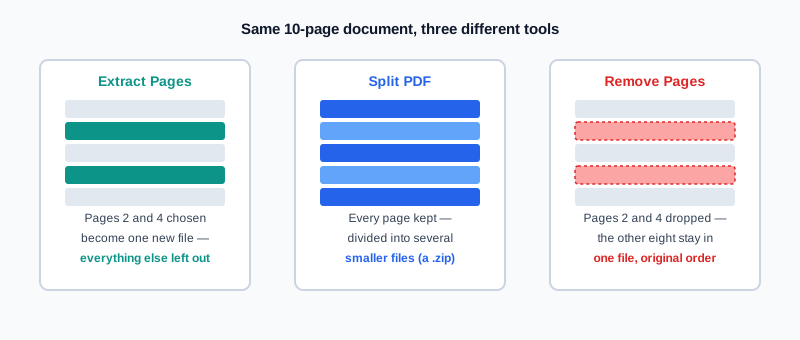
If you're not sure yet which of the three you actually need, ask which pile is smaller: the pages you want, or the pages you don't. If the pages you want are the minority, extraction is usually the faster path. If the pages you don't want are the minority, Remove Pages gets there in fewer steps.
How to Extract Pages from a PDF, Step by Step
Step 1: Open the Extract Pages Tool
Go to My PDF's Extract Pages tool. It loads directly in your browser — no account, no software to install.
Step 2: Upload Your PDF
Drag your file into the upload area, or click to browse and select it. Files up to 50 MB are accepted, and there's no separate limit on how many pages the document can contain.
Step 3: Type in the Pages You Want
Enter the page numbers you want to keep in the Pages to extract field — a single number, a comma-separated list, a range, or a mix of both. 1,3,5-7 pulls pages 1, 3, 5, 6 and 7 into the new file.
Step 4: Click "Extract Pages" and Download
The tool builds your new file in a few seconds. It downloads as a single PDF, containing only the pages you specified, ready to send, print or file away. The original file you uploaded is removed from the server shortly afterward.
Understanding the Page Range Syntax
This is the part that trips people up more than anything else about the tool, so it's worth a closer look.
- A single number like
12pulls just that one page. - A comma separates individual pages:
2,5,9pulls exactly those three pages and nothing between them. - A hyphen defines a continuous range:
10-15pulls pages 10 through 15 inclusive — six pages, not five. - Combine them freely:
1,3,5-7,20is a perfectly valid request, and pulls five pages total.
One detail that's genuinely useful and rarely mentioned: the pages come out in the order you type them, not automatically sorted from lowest to highest. Typing 5,1,3 doesn't quietly reorder itself to 1,3,5 — it produces a new file with page 5 first, then page 1, then page 3. Ranges written with a hyphen still expand in ascending order internally (7-5 is read the same as 5-7), but separate, comma-separated entries keep whatever order you list them in. In practice, that means Extract Pages can double as a quick way to pull out and reorder a handful of pages in a single pass, without a separate reordering step.
Practical Examples
Pulling one signature page out of a long contract. A fifty-page vendor agreement only needs its signature page (page 47) sent back for a quick confirmation. Type 47, extract, and send that single page instead of the whole document.
Grabbing one chapter from a scanned course reader. A 200-page PDF covers an entire semester, but this week's reading is only chapter three, which runs from page 58 to page 74. Type 58-74, and the new file contains exactly that chapter, with its own page numbering starting fresh at page 1.
Assembling a mini-packet from a few non-consecutive pages. A grant application needs pages 2, 9, and 15 through 17 of a longer internal report, pulled together as one attachment. Type 2,9,15-17, and all four — sorry, five — pages land in a single new file in that order, ready to attach.
Extract vs. Split vs. Remove vs. Organize
All four of these live in the same general area — "something about this document's pages needs to change" — but they solve genuinely different problems:
| Tool | What it does | Use it when |
|---|---|---|
| Extract Pages | Pulls specific pages into one new file | You need a small, specific subset — the rest can be discarded |
| Split PDF | Breaks the whole document into multiple files | Every page (or group of pages) needs to become its own file |
| Remove Pages | Deletes specific pages, keeps the rest | Most of the document is fine — a few pages need to go |
| Organize Pages | Changes the order pages appear in | The content is right, but the sequence is wrong |
A quick way to check you've picked correctly: describe what you want out loud. "I just need pages 4 and 9" points to Extract. "I need this whole thing broken into pieces" points to Split. "I need everything except page 6" points to Remove. If what you're actually describing is "these pages are all here, just in the wrong order," none of the three above are right — that's Organize Pages instead.
Common Mistakes When Extracting PDF Pages
Confusing extraction with splitting. Extracting a range like 1-40 from a 40-page document and splitting it into individual pages are not the same operation, even though both can feel like "breaking up a big file." If you actually need every page as its own file, Split PDF with a chunk size of 1 is the right tool, not extraction.
Miscounting a range's length. 10-15 is six pages, not five — the range is inclusive on both ends. Double-checking the page count in the downloaded result takes a few seconds and catches this immediately.
Using the document's printed page numbers instead of its actual position in the file. A scanned book might display "Page 1" on what's actually the fifth page of the PDF, after a cover and a few front-matter pages. Always count from the PDF viewer's own page counter, not any page number printed on the page itself.
Forgetting a password-protected file needs unlocking first. An encrypted PDF can't be opened for extraction until the password is removed with Unlock PDF. Run that first, then extract from the unlocked copy.
Trying to extract from more than one file at once. The tool works on a single source document per run. If the pages you need are spread across several separate PDFs, extract from each one individually, then use Merge PDF to combine the results into one file.
Tips & Best Practices
- Check the page count in a viewer first, especially with a scanned document where the printed numbering and the actual PDF page order can drift apart.
- Use ranges instead of typing every number when you need a long consecutive block —
40-65is faster and less error-prone than listing every page individually. - List pages in the order you want them, not necessarily ascending, if you're pulling together a small custom packet from non-consecutive pages.
- Open the result before sending it on, particularly for a range spanning dozens of pages, to confirm the boundaries landed where you expected.
- Unlock protected files before extracting. Encryption has to come off first, using the file's current password.
- Extract before you merge, not after, when only part of one source file belongs in a combined document — it's less cleanup than merging everything and removing the extra pages afterward.
Key Takeaways
- Extracting keeps only the pages you choose, in one new file — that's the key difference from splitting (which keeps every page, just divided up) and removing (which keeps everything except your list).
- The syntax accepts single pages, comma-separated lists, hyphenated ranges, or any mix —
1,3,5-7is a perfectly valid request. - Pages come out in the order you type them, not automatically sorted — a handy way to reorder a small selection while you extract it.
- Always count pages from the PDF viewer's own counter, not any page number printed on the page, especially with scanned documents that include a cover or front matter.
- An encrypted source file needs to be unlocked before its pages can be extracted.
Related Reading
For the full set of page-level tools working together — splitting, removing, reordering and extracting — see the complete guide to organizing PDF pages. If what you actually need is the opposite operation, how to split a PDF covers breaking a whole document into pieces. For more guides like this one, browse the full blog or the complete tools directory. For background on how pages are structured inside the format itself, see Wikipedia's entry on PDF.
Only need a handful of pages out of a much bigger file? Open the Extract Pages tool and have your new file ready in seconds.
Comments
Comments aren't open on the blog yet. In the meantime, share this article using the buttons above, or reach us directly at contact@mypdf.tech.