Typing a truly random password on a phone keyboard is its own small ordeal — hunting for the right symbol key, double-checking a lowercase l isn't actually a 1, retyping it because autocorrect "helpfully" capitalized the first letter. A passphrase sidesteps most of that friction. It's still random, still hard to guess, but it's built from ordinary words strung together, which makes it dramatically easier to type correctly on the first try.
This guide covers what a passphrase actually is, the real math behind why a handful of random words can rival a much longer string of random characters, and how to use My PDF's Passphrase Generator to create one properly — along with the mistakes that quietly undermine a passphrase's strength even when it looks long and complicated.
What Is a Passphrase, and How Is It Different From a Password?
A password is usually a shortish string built from a mix of character types — letters, numbers, symbols. A passphrase is built the opposite way: several random, unrelated words strung together, like Coral-Ember-Voyage-Marble, instead of something like xK9!mQ2$vL.
The important word there is unrelated. A passphrase isn't a memorable sentence you make up yourself — "ILoveMyDog2024" is not a passphrase in any meaningful security sense, it's a predictable phrase with a number stuck on the end, and it's exactly the kind of pattern automated guessing tools are built to try first. A real passphrase comes from picking words at random from a list, the same way a password generator picks characters at random from a charset. The randomness is what does the actual work; the fact that the output happens to be pronounceable is just a side benefit.
That side benefit turns out to matter more than it sounds. Words are chunked information — a brain holds "seven random words" far more easily than "forty random characters," even when both represent a comparable amount of actual randomness. That's the entire case for a passphrase: comparable security, meaningfully easier to handle.
Why a Passphrase Can Hold Its Own Against a Random Password
This is worth walking through with real numbers rather than taking on faith, because it's easy to assume "words" must be weaker than "random characters." It isn't a given either way — it depends entirely on how much randomness is actually behind each word.
Passphrase Generator draws every word from a fixed list of roughly 70 words, picked independently and at random for each slot. Each additional word doesn't just add to the number of possible passphrases — it multiplies it, the same exponential relationship covered in our guide to generating a strong password. One word out of roughly 70 options isn't much on its own. Ten words, each picked independently from that same pool, is an enormous space to search.
| Words in the passphrase | Approximate combinations (words only) | With the optional trailing number |
|---|---|---|
| 4 (the default) | ~24 million | ~2.2 billion |
| 6 | ~118 billion | ~10.6 trillion |
| 8 | ~576 trillion | ~52 quadrillion |
| 10 (the maximum) | ~2.8 quintillion | ~254 quintillion |
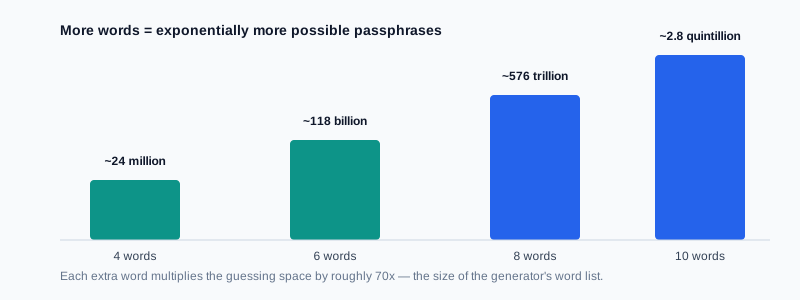
A few things worth noticing in that table. First, the jump from four words to six is already worth almost five orders of magnitude — small increases in word count buy disproportionately large increases in guessing difficulty. Second, the optional trailing number is a nice bonus but a comparatively minor one: multiplying by roughly 90 possible two-digit numbers is nothing next to multiplying by 70 several more times. If you want a meaningfully stronger passphrase, add another word — don't lean on the number to do that job.
How the Passphrase Generator Works
My PDF's Passphrase Generator runs entirely in your browser — nothing you generate is sent to a server, logged, or stored anywhere. You control four things:
- Number of words, from 3 up to 10. Four is the default, which is a reasonable starting point for a low-stakes account; go higher for anything more sensitive.
- Separator, choosing between a hyphen, an underscore, a period, or a plain space between words. This is purely cosmetic — it doesn't add or remove randomness — so pick whichever your typical login field handles most comfortably.
- Capitalize each word, which title-cases every word for readability. Like the separator, this doesn't add randomness on its own, since the capitalization pattern is fixed and predictable rather than randomly chosen.
- Add a random number at the end, appending a random two-digit number as a small extra layer, mainly useful for satisfying a site's "must contain a number" rule rather than as your main source of strength.
Every word is picked independently, so nothing about one word influences the next — there's no built-in grammar or theme holding the phrase together, which is exactly what keeps it unguessable.
How to Generate a Secure Passphrase, Step by Step
Step 1: Open the Passphrase Generator
Go to My PDF's Passphrase Generator. There's nothing to install and no account needed — the generated passphrase appears the moment you land on the page.
Step 2: Set the Word Count for Your Situation
Leave it at 4 for something low-stakes and easy to type often, like a home Wi-Fi network. Raise it to 6–8 for an actual account password, and consider the full 10 for something you'll type rarely but that protects something important, like an encryption key or a master password.
Step 3: Choose a Separator and Formatting
Pick whichever separator the destination field is likely to accept comfortably — a hyphen is the safest general default. Leave capitalization on if you like the readability; it costs nothing either way.
Step 4: Generate, Copy, and Store It Properly
Click "Generate Passphrase," then copy the result directly into a password manager rather than retyping it from memory. Click again for a fresh one if you want to see a few options before settling on one.
Practical Examples
Setting up a home Wi-Fi network. A router password gets typed by hand on phones, laptops, and the occasional smart TV remote fairly often, which makes it a great fit for a passphrase — generate 4–5 words, keep the hyphen separator, and it's something a guest can type correctly on their first attempt.
Creating a master password for a password manager. This is the one password you'll actually need to remember and type from time to time, since everything else lives behind it. Generate 6 or more words here — it's worth the extra length, since this single passphrase effectively protects every other credential you own.
Protecting a sensitive PDF. If you're about to password-protect a PDF that you'll need to hand-type again later — say, on a colleague's machine where you can't paste from a manager — an 8-word passphrase is far easier to communicate accurately over the phone than a random string of symbols.
Sharing a temporary credential with a teammate. A passphrase reads out loud far more reliably than a random password does. "Coral, hyphen, Ember, hyphen, Voyage, hyphen, forty-two" is easy to relay and easy to check back; a jumble of mixed-case letters and symbols invites transcription errors on both ends.
Common Mistakes When Creating a Passphrase
Writing your own phrase instead of generating one. A sentence you came up with — a song lyric, a favorite quote, a name plus a birth year — is not random, even if it's long. It draws from a comparatively small, predictable set of phrases that people actually use, which guessing tools are built around. Always generate; never compose.
Stopping at 3 or 4 words for something genuinely sensitive. Four words is a fine default for convenience, but as the table above shows, it's the least of the four options in real guessing difficulty. Reserve the shorter end for low-stakes, frequently typed credentials, and go longer for anything that actually matters.
Treating the trailing number as the main source of strength. It's a small multiplier, not a substitute for another word. If a site demands a digit, add it — but don't count on it to meaningfully raise the difficulty of guessing the phrase.
Reusing the same passphrase across multiple accounts. This undermines a passphrase exactly the way it undermines a password — one exposed account puts every account sharing that passphrase at risk. Generate a fresh one per account, same as you would with any password.
Assuming "it's just words" makes it weaker than symbols. As the entropy math above shows, this isn't automatically true — a sufficiently long passphrase drawn from independent random words is a legitimately strong credential, not a lesser substitute for a "real" password.
Tips and Best Practices
- Match the word count to how often you'll type it. Fewer words for something you'll type constantly on a keyboard-limited device; more words for something typed rarely but worth protecting well.
- Use 6 or more words for anything protecting other credentials, like a password manager's master password.
- Pick the separator your target field actually accepts. Some login forms and Wi-Fi setups reject spaces or certain symbols — a hyphen or underscore is the safer general choice.
- Store it the same way you'd store a generated password — in a password manager, never in a plain text note or a sticky note.
- Generate a new one rather than reusing an old passphrase, even a strong one, across a different account.
Key Takeaways
- A passphrase is several independently random words strung together — not a memorable phrase you make up yourself.
- Word count is the main lever for strength: each additional word multiplies the guessing space by roughly 70×, far more than the optional trailing number adds.
- Four words is a fine default for convenience; 6–8 words is the better choice for anything protecting other credentials or sensitive data.
- The separator and capitalization options are purely for readability — they don't add or remove randomness.
- Never compose your own "random" phrase by hand — always generate, and never reuse a passphrase across more than one account.
Related Reading
If you'd rather build a credential from random characters instead of words, how to generate a strong password covers the math behind character-based randomness and how that generator works. To see how a strength score is actually calculated, how to check your password strength breaks down what a "Strong" rating really means. If the passphrase you're creating is meant to secure a document, how to password-protect a PDF covers applying it correctly. For more guides like this one, browse the full blog or the complete tools directory. For background on the underlying concept, see Wikipedia's entry on passphrases and NIST's digital identity guidelines, which explicitly recommend longer, simpler passphrases over short, complex ones.
Ready to create one? Open the Passphrase Generator and get a genuinely random passphrase in seconds — no signup, no installation.
Comments
Comments aren't open on the blog yet. In the meantime, share this article using the buttons above, or reach us directly at contact@mypdf.tech.