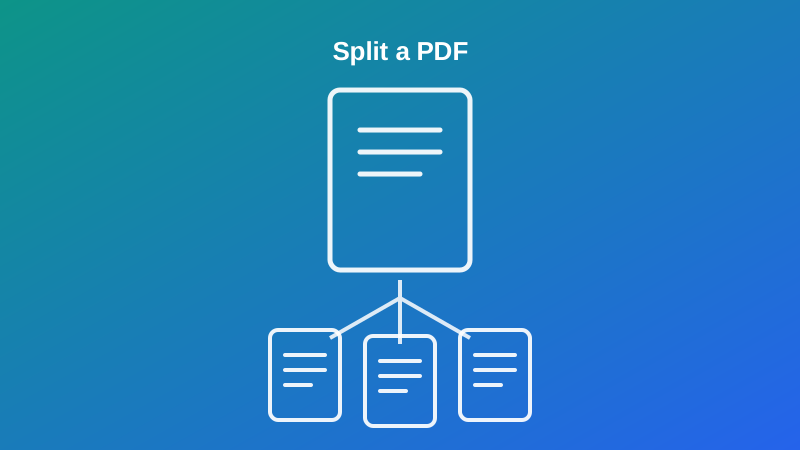
Somebody asks for "just the March invoices," and what you actually have is one 90-page PDF covering the whole year. Or a scanner spat out an entire stack of signed forms as a single file, and now each one needs to land in a different folder before Monday. The document itself isn't the problem — its size is. You don't need to edit anything inside it; you need it to stop being one file and start being several.
This guide walks through how to split a PDF into individual pages or evenly sized chunks, how the download actually arrives (it trips people up more often than you'd expect), a worked example with real numbers, and where splitting stops being the right tool for the job.
Why You'd Split a PDF in the First Place
A handful of situations come up again and again:
- One document actually contains several separate things. A scanned batch of signed contracts, a year of bank statements, or a stack of exam papers run through a single scanning pass all land in one PDF, even though they were never meant to be read as one continuous document.
- A file is too large to send. Some email providers and upload forms cap attachments well below what a 60-page PDF full of scanned images weighs. Breaking it into smaller pieces gets around the limit without touching the content itself.
- Only part of a document is relevant to the recipient. Sharing an entire 40-page report when someone only needs section three means they have to dig through pages that don't apply to them.
- A workflow expects one file per unit. Some accounting software, form processors, and archive systems expect a single invoice, form, or record per file — not a batch of forty stapled together digitally.
None of these need the document's content changed. They need the document divided.
Individual Pages vs. Fixed-Size Chunks
This is the one setting that decides everything about the result, so it's worth understanding before you upload anything. My PDF's Split PDF tool gives you a single number — how many pages go in each new file — and that number changes what comes out entirely.
Leave it at 1 (the default) and every page becomes its own standalone PDF. A 20-page document produces 20 one-page files. This is what you want when a scan needs to become individual pages — for a form processor that expects one page per upload, for example, or when you genuinely don't know yet how the pages should be grouped and want the smallest possible pieces to work with afterward.
Set it higher — say, 5 — and the tool groups pages into fixed-size blocks instead: pages 1–5 in the first file, 6–10 in the second, and so on, with whatever's left over forming a final, shorter file. This is what you want when the document is already organized into equal-length sections, like a set of five-page monthly reports stapled into one file.
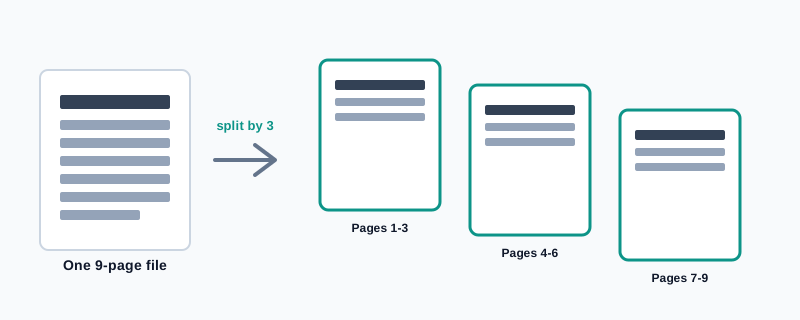
Either way, the result is always a .zip archive containing every piece — because splitting, by definition, produces more than one file, and a browser can only hand back a single download at a time.
How to Split a PDF, Step by Step
Step 1: Open the Split PDF Tool
Go to My PDF's Split PDF tool. There's nothing to install and no account to create — the upload area loads right on the page.
Step 2: Upload Your PDF
Drag your file in, or click to browse and select it. Files up to 50 MB are accepted, and there's no separate cap on how many pages a document can contain.
Step 3: Set How Many Pages Per File
Leave the field at its default of 1 to split into individual pages, or type in a higher number to split into fixed-size chunks — 10, for instance, to produce a run of ten-page files.
Step 4: Click "Split PDF"
Processing takes a few seconds regardless of the document's length.
Step 5: Download the .zip and Extract It
You'll get back a single .zip file containing every piece, named and ordered to match their position in the original document. Extract it with your operating system's built-in unzip (right-click → Extract on Windows, or double-click on macOS) to get to the individual PDFs inside.
A Practical Example: Splitting a 40-Page Scanned Workbook
Say a teacher scans a 40-page packet of weekly worksheets — five pages per week, eight weeks in total — as one continuous PDF, and now needs to hand out each week separately.
- Upload the 40-page file to Split PDF.
- Set pages-per-file to 5.
- Click Split PDF and download the .zip.
- Extract it — inside are eight five-page PDFs, the first covering pages 1–5, the second pages 6–10, and so on through pages 36–40.
The math here is simple because the packet was built in equal five-page blocks to begin with: 40 pages ÷ 5 per file = exactly 8 files, no leftover. That clean division is what makes fixed-size splitting the right call — it only works this smoothly when the source document was already organized into same-sized sections. A packet with some three-page weeks and some seven-page weeks would come out of this same process cut at the wrong points, which is exactly the mistake covered next.
Common Mistakes When Splitting a PDF
Using a fixed chunk size on unevenly sized sections. If your document's real sections don't all contain the same number of pages — chapters of different lengths, invoices with a varying number of line-item pages — splitting by a fixed number cuts pages together that don't belong in the same file, and separates ones that do. Extract Pages is the better fit here: it lets you specify exactly which page numbers go into each file, regardless of how long each section actually is.
Not expecting a .zip file. Because splitting always produces more than one output, the download is a single .zip archive, not a folder of PDFs sitting directly in your Downloads. If you're looking for the split files and only see one archive, that's expected — extract it first.
Assuming a leftover partial file is an error. When the page count doesn't divide evenly by the chunk size, the last file in the .zip is simply shorter than the others. That's correct behavior, not something to troubleshoot.
Splitting before checking page order. If a scanned stack came out of order to begin with, splitting it locks in that same wrong order across multiple files — which is a lot more annoying to fix after the fact than before. Run Organize Pages first if there's any doubt about page order.
Forgetting a protected PDF needs unlocking first. An encrypted file can't be split until its password is removed with Unlock PDF.
Splitting when merging is actually what's needed. It sounds obvious written down, but it's an easy mix-up under deadline pressure: splitting takes one file and produces several; if you're instead trying to combine several files into one, that's Merge PDF, the opposite operation.
Split PDF vs. Extract Pages vs. Remove Pages
These three tools all change how many pages end up in a file, but they answer different questions:
| Tool | What it does | Use it when |
|---|---|---|
| Split PDF | Breaks the whole document into individual pages or equal-sized chunks | Every page needs to end up somewhere, split by count |
| Extract Pages | Pulls specific page numbers into one new file | You need exact pages — say 1,3,5-7 — regardless of length |
| Remove Pages | Deletes specific pages, keeping the rest as one file | Most of the document is fine; a few pages need to go |
A quick way to tell them apart: Split produces many files from one, based on a count. Extract produces one file from many pages, based on which ones you name. Remove produces one smaller file, based on which pages you're getting rid of. If you're not sure which applies, ask whether you want everything divided up (Split), only certain pages kept (Extract), or only certain pages gone (Remove).
For the full picture of page-level tools working together — including reordering and rotating — see the complete guide to organizing PDF pages.
Tips & Best Practices
- Check whether your sections are equal length before choosing a chunk size. Fixed-size splitting only lands cleanly on documents built in same-sized blocks — statements, weekly packets, batch scans of identical forms.
- Use Extract Pages instead when sections vary in length. Naming exact page ranges beats guessing at a chunk size that won't fit every section.
- Always extract the .zip before assuming something's missing. The download is one archive containing every piece, not individual files.
- Confirm page order before splitting, since a wrong order carried into multiple files is more work to fix afterward than catching it up front with Organize Pages.
- Unlock protected files first. Encryption has to come off with the current password before any page-level tool, including Split, can process the file.
- Rename the extracted files right away if you're distributing them — "worksheet-week-1.pdf" is a lot more useful to a recipient than the tool's default numbered filename.
Key Takeaways
- Splitting divides one PDF into several files by page count — either one page per file, or fixed-size chunks you choose.
- The result always downloads as a single .zip archive, since splitting produces more than one file at once.
- Fixed-size chunks only line up cleanly when a document's sections are already the same length; use Extract Pages instead when they're not.
- A shorter final file in the .zip isn't an error — it's just what's left over when the page count doesn't divide evenly.
- Splitting, Extracting and Removing pages solve three related but different problems: how many files you end up with, which pages you keep, and which pages you drop.
Related Reading
For pulling out specific, non-consecutive pages instead of splitting by count, see Extract Pages. If your pages also need reordering or rotating alongside splitting, the complete guide to organizing PDF pages covers all of it together. Need to go the other direction and combine files instead? How to merge PDF files walks through that. For more guides like this one, browse the full blog or the complete tools directory. For background on the format itself, see Wikipedia's entry on PDF.
Got one file that needs to become several? Open the Split PDF tool and have it done in seconds.
Comments
Comments aren't open on the blog yet. In the meantime, share this article using the buttons above, or reach us directly at contact@mypdf.tech.