Sometimes you don't want a PDF at all — you want the words inside it. Maybe you need to paste a clause from a contract into an email without dragging along the original formatting. Maybe you're trying to search a 60-page report for one specific phrase, and your PDF viewer's search box is being slow about it. Maybe some other piece of software you're using flatly refuses to accept a PDF and just wants plain text.
That's exactly what converting a PDF to text is for, and it takes under a minute once you know what to expect. This guide covers how the conversion actually works under the hood, the one thing that determines whether it'll work at all on your specific file, and the small formatting quirks that show up afterward — plus how to deal with each of them.
What a PDF to Text Converter Actually Does
A PDF to text converter reads the words already embedded in a PDF's pages and writes them out, in reading order, into a plain .txt file. My PDF's PDF to Text tool does exactly this: no fonts, no images, no page layout — just the words themselves, stripped down to the plainest format there is.
That word "embedded" is doing a lot of work in that sentence, and it's the part most quick explanations skip over. A PDF doesn't just look like it has text on the page — a digitally created PDF actually stores that text as text, in a hidden layer underneath what you see. Extraction reads that layer directly. It isn't reading the page visually the way a person does; it's pulling structured data straight out of the file.
Text Layer vs. Scanned Image: The One Thing That Determines Everything
This is the single most important thing to understand before you upload anything, and it's worth getting right, because it explains almost every extraction problem before it happens.
A PDF created from a word processor, exported from a design tool, or generated directly by software has real, selectable text underneath the page. A PDF created by scanning or photographing a physical page does not — it's really just a picture of a page, saved inside a PDF wrapper. To a human eye both look identical. To a text extractor, they're completely different files.
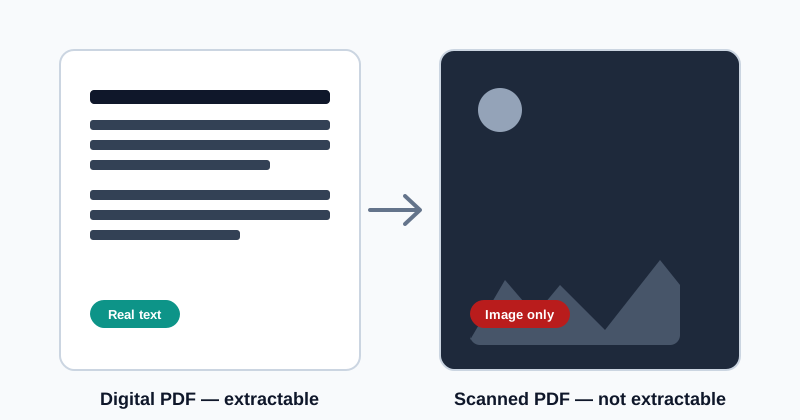
Here's a genuinely useful thirty-second test before you convert anything: open the PDF in any viewer and try to click-and-drag to highlight a single word on the page. If a word highlights the way it would in a Word document, there's a real text layer underneath, and extraction will work cleanly. If nothing highlights — if your cursor just drags a selection box around the whole page like it's a photo, because it is one — there's no text to extract, and a plain extraction tool will return little or nothing.
When Extracting Text Actually Helps
Once you know the file has a real text layer, extraction is useful in more situations than people initially expect:
- Searching a long document faster. A plain-text file opens instantly in any text editor and searches significantly faster than paging through a PDF viewer's built-in search, especially on a long report or a dense legal document.
- Pasting content without formatting fights. Copying a paragraph out of a PDF into an email or another document sometimes drags along strange fonts, spacing or line breaks. A plain-text version pastes cleanly, with none of that baggage.
- Feeding content into another system. Plenty of tools — spreadsheets, translation software, other text-processing services — accept plain text but choke on PDFs entirely. Extraction bridges that gap in one step.
- Archiving a document's content independently of its format. A
.txtfile is tiny, opens on literally anything, and will still be readable decades from now regardless of what happens to PDF-reading software. - Quick accessibility checks. Reviewing a plain-text version of a document is a fast way to confirm what a screen reader or text-only tool would actually pick up from it.
How to Convert a PDF to Text, Step by Step
Step 1: Confirm the PDF Has Real Text
Before uploading anything, do the click-and-drag test above. It takes five seconds and saves you from uploading a scanned file expecting a result that can't happen.
Step 2: Open the PDF to Text Tool
Go to My PDF's PDF to Text tool. No account, no installation — the upload area is right there on the page.
Step 3: Upload Your PDF
Drag your file into the upload area, or click to browse and select it.
Step 4: Click "Convert to Text"
The server reads every page's text layer and combines it into one file, typically within a few seconds — even for a long document.
Step 5: Download and Open Your Text File
Your .txt file downloads immediately, ready to open in any text editor, paste from, or search through.
A Practical Example: Making a 40-Page Report Searchable
Say you've been handed a 40-page compliance report and asked to find every section that mentions a specific clause — by name, scattered unpredictably through the document. Scrolling through page by page, or even using a PDF viewer's search, is slow going on a document that long.
- Confirm the report has a real text layer by highlighting a line of text in your PDF viewer — reports generated from templates almost always do.
- Run it through PDF to Text and download the resulting
.txtfile. - Open the text file and search it with a plain-text editor — searching a
.txtfile is close to instant, even across dozens of pages. - Once you've found the relevant sections, go back to the original PDF for the actual formatted context, since the text file won't show you which page number or section heading a given line belongs to.
That last point matters: extraction is a tool for finding and reusing content, not a replacement for the original document. Keep both.
Common Formatting Quirks After Extraction (and How to Fix Them)
Plain text extraction is honest about what it does — it doesn't try to reconstruct a layout, so a few things commonly look different from how you'd expect:
Multi-column pages can interleave oddly. A PDF laid out in two columns doesn't extract "column one, then column two" — text often comes out in the order it's stored in the file, which can jump between columns line by line. If a document uses columns, expect to do some manual reordering for anything you need to read in sequence.
Hyphenated words split across a line break. A word like "docu-\nment" at the end of a line in the original PDF often extracts as two separate fragments rather than being automatically rejoined. A quick find-and-replace for -\n in a text editor cleans most of these up at once.
Headers and footers show up mid-document. Page numbers, running titles, and footnote markers are part of the page's text too, so they typically appear inline rather than being filtered out — expect to see them scattered through the file rather than neatly excluded.
Tables collapse into jumbled rows. A table's visual structure (columns lined up neatly) isn't part of its underlying text — extraction pulls the words out in roughly reading order, but the neat grid is gone. For anything where the table's actual structure matters, keep the source PDF as the reference copy rather than relying on the extracted text.
Extra blank lines appear at page breaks. These are usually harmless and easy to ignore, but worth knowing about if you're piping the text into something that's sensitive to blank lines.
None of this means extraction "didn't work" — it means extraction did exactly what it's supposed to do: pull out the words, in order, without trying to guess at layout it was never given instructions to preserve.
Common Mistakes When Extracting Text From a PDF
Uploading a scanned document and expecting text back. This is by far the most common surprise, and it's not a bug — a scanned page genuinely has no text layer to extract. Test with the click-and-drag method first.
Forgetting to unlock a protected PDF first. Encrypted files can't be read until the password is removed with Unlock PDF — extraction will fail on a locked file every time, regardless of the password's strength.
Expecting formatting to survive. Bold text, headings, and page layout are deliberately not part of the output. If you need formatting preserved, extraction isn't the right tool for that specific need.
Opening the file in the wrong app and seeing garbled characters. Occasionally an unusual font's special characters (curly quotes, accented letters) display oddly in a very basic text viewer. Opening the file in a modern text editor that reads UTF-8 correctly almost always resolves this.
Deleting the original PDF too soon. The text file is for searching and reuse — it doesn't carry page numbers, headings, or the visual context of the original. Keep the source PDF around for anything beyond the raw words.
PDF to Text vs. Other Ways to Get a Document's Words
| Method | Works on scanned pages | Preserves reading order | Needs extra software |
|---|---|---|---|
| PDF to Text tool | No — requires a real text layer | Mostly, except multi-column layouts | No |
| OCR software | Yes, by recognizing character shapes | Usually | Often, or a separate paid service |
| Manually copying from a PDF viewer | Only if the text layer exists | Manual, page by page | No, but slow for long documents |
If your document is digitally created, a direct extraction tool is the fastest and simplest option in that table. If it's scanned, extraction fundamentally can't help — that's a job for OCR technology specifically, which works in an entirely different way.
Tips & Best Practices
- Always test selectability before uploading, especially with older documents you didn't create yourself — you can't tell a scan from a digital PDF just by looking at it on screen.
- Unlock protected files first. Extraction and encryption don't mix; remove the password before extracting.
- Clean up hyphenation and blank lines afterward with a couple of quick find-and-replace passes in a plain-text editor.
- Keep the source PDF for anything structural — tables, page numbers, exact formatting. Treat the text file as a search-and-reuse copy, not a replacement.
- Use it for speed, not permanence. Extraction shines at fast keyword searches and quick reuse; for a document you'll refer back to for its exact layout, the original PDF is still the authoritative version.
Key Takeaways
- Extraction reads a PDF's existing embedded text layer — it doesn't recognize text visually, so it can't read a scanned document at all.
- A quick click-and-drag test in any PDF viewer tells you in seconds whether a file has real text to extract.
- Multi-column layouts, hyphenated words and tables are the most common places extracted text looks different from the original page — none of that means the conversion failed.
- Unlock a password-protected PDF before extracting; encryption and extraction don't mix.
- Keep the original PDF alongside the extracted text — the text file is for searching and reuse, not a replacement for the formatted document.
Related Reading
If the file you need text from is password-protected, how to unlock a PDF file covers removing that password first. If you're also cleaning up a document's Title, Author or Keywords rather than just its content, PDF metadata explained covers that separate layer of information. For more guides like this one, browse the full blog or the complete tools directory. For background on how scanned documents get turned into searchable text, see Wikipedia's entry on optical character recognition.
Got a document whose words you need out of it? Open the PDF to Text tool and get a clean, searchable text file in seconds.
Comments
Comments aren't open on the blog yet. In the meantime, share this article using the buttons above, or reach us directly at contact@mypdf.tech.