You've got a list — email addresses exported from two different systems, log lines pulled from a server, URLs collected while researching something — and somewhere in there, a handful of entries got added twice. You need a clean list, but here's the catch: the order actually matters. It's chronological, or it reflects the sequence something happened in, and a tool that "cleans it up" by alphabetizing everything in the process has just traded one problem for another.
This guide covers how to strip out duplicate lines while leaving everything else exactly where it was, the specific settings that determine what counts as a "duplicate" in the first place, and the one mix-up worth avoiding if your list has more than one dedication tool available to it.
What This Tool Actually Does
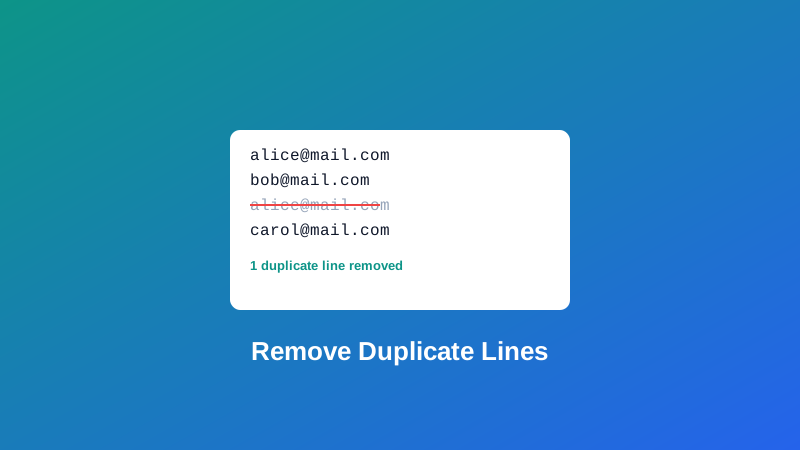
My PDF's Duplicate Line Remover reads your list line by line, keeps the first time each line appears, and silently drops every repeat that shows up after that — without touching the order of anything that survives. Line four stays line four (accounting for whatever came before it that got removed); nothing gets resorted, alphabetized, or rearranged as a side effect of cleaning it up.
It also tells you exactly what happened: after processing, you get a note confirming how many duplicate lines were actually removed, so you're not left guessing whether anything changed.
Duplicate Line Remover vs. Text Sorter's Dedupe Option
This is the mix-up worth knowing about before you start, since Text Sorter on this site also has a "remove duplicates" option — and the two tools genuinely behave differently.
Text Sorter's dedupe checkbox removes repeated lines, but it does so as part of a tool whose whole job is sorting. Once you're using it, your list gets sorted too — there's no way to dedupe with that tool without also reordering the result alphabetically (or by length, depending on the sort mode chosen).

| Duplicate Line Remover | Text Sorter (dedupe on) | |
|---|---|---|
| Removes duplicate lines | Yes | Yes |
| Keeps original order | Yes | No — always sorts |
| Also sorts the list | No | Yes |
The rule of thumb: if the sequence of your list matters, use Duplicate Line Remover. If you actually want a clean, alphabetized (or length-sorted) reference list and don't care about original order, Text Sorter's dedupe option does both jobs in a single pass.
Case Sensitivity and Trimming: Two Settings Worth Understanding
Two toggles decide what actually counts as "the same line," and getting them wrong is the most common reason a dedupe pass doesn't do what you expected.
Trim whitespace before comparing (on by default) decides whether invisible differences count. apple and apple (with a trailing space) look identical to a human but are technically different strings — with trimming on, they're treated as the same line and one gets removed; with it off, both survive as "unique" entries, since the extra space makes them different on a strict character basis.
Ignore case when comparing (off by default) decides whether Apple and apple count as duplicates. Left off, capitalization has to match exactly for two lines to be treated as the same. Turned on, the comparison ignores case entirely — useful for data like email addresses or names, where the same real-world entry often shows up with inconsistent capitalization depending on where it was originally entered.
How to Remove Duplicate Lines, Step by Step
Step 1: Open the Duplicate Line Remover
Go to My PDF's Duplicate Line Remover. No installation or account needed.
Step 2: Paste Your List
One entry per line — the tool works on any plain-text list, regardless of what the lines actually contain.
Step 3: Adjust the Comparison Settings
Turn trimming and case-insensitivity on or off depending on how strict you need the comparison to be, based on what your data actually looks like.
Step 4: Copy the Result and Check the Count
The cleaned list is ready to copy or download, and the note underneath tells you exactly how many duplicate lines were removed.
Practical Examples
Cleaning an email list from two merged sources. You've combined a signup list from two systems, and a handful of addresses appear in both. Removing duplicates here keeps the list in its original signup order, rather than alphabetizing everyone by email address.
Deduplicating repeated lines in a log file. A script or server log occasionally writes the same line twice due to a retry or a logging glitch. Cleaning it up here preserves the chronological sequence the log actually needs to make sense.
Consolidating a list of URLs gathered while researching. Copy-pasted links from multiple pages often end up with a few exact repeats. Deduplicating keeps them in the order you collected them, useful if that order reflects priority or relevance.
Merging two contact lists with inconsistent capitalization. One list has John@email.com, the other has john@email.com — the same address, formatted differently. Turning on case-insensitive comparison catches this as a genuine duplicate instead of two separate "unique" entries.
Common Mistakes When Removing Duplicate Lines
Assuming any "duplicate remover" preserves order. Plenty of tools — including Text Sorter's own dedupe option — sort as part of the process. Check which behavior you're actually getting before running a list where sequence matters.
Leaving trimming off when trailing spaces are the real problem. Two visually identical lines won't merge if one has invisible trailing whitespace and trimming is switched off.
Not turning on case-insensitive comparison for inconsistent data. Names and emails typed by different people rarely share consistent capitalization — leaving this off lets obvious duplicates slip through as "unique."
Ignoring blank lines mixed into the list. Blank lines get compared like any other line, so several blank lines in a row get treated as duplicates of each other and collapsed to one — worth knowing if you expected them to stay as-is, or run the list through Whitespace Remover first if you want them gone entirely instead.
Skipping the removed-count check. The note after processing is a fast way to confirm the operation actually found and removed something — a quick glance catches a settings mismatch before it causes confusion later.
Tips & Best Practices
- Turn on trim whitespace by default unless you have a specific reason to treat whitespace differences as meaningful.
- Turn on case-insensitive comparison for human-entered data — emails, names, anything typed inconsistently across sources.
- Pre-clean with Whitespace Remover if your list has messy blank lines or irregular spacing beyond what simple trimming handles.
- Use Text Sorter's dedupe option instead if you actually want a sorted, deduplicated reference list rather than one that preserves original order.
- Check the removed-count note every time — it's the fastest way to confirm the settings you chose matched what your data actually needed.
Key Takeaways
- Duplicate Line Remover keeps the first occurrence of each line and preserves your original order — nothing gets resorted.
- Text Sorter also has a dedupe option, but it always sorts the list as part of that process — pick the tool based on whether order matters to you.
- Trimming whitespace and ignoring case are both off-by-default-adjustable settings that determine what actually counts as a duplicate.
- The removed-count note after processing is a quick way to confirm the operation did what you expected.
- For messy, human-entered lists, turning on both trimming and case-insensitive comparison catches the most genuine duplicates.
Related Reading
If your list came from inside a PDF — a scanned directory, an exported report — PDF to Text pulls the text out first so you can clean it up here afterward. For more guides like this one, browse the full blog or the complete tools directory.
Got a list with repeats to clean up? Open the Duplicate Line Remover and get a clean, correctly ordered list in seconds.



Comments
Comments aren't open on the blog yet. In the meantime, share this article using the buttons above, or reach us directly at contact@mypdf.tech.