
Printing a QR code onto a flyer, a menu, or a business card is the easy part. What most people never think to check is what actually happens when a phone scans it — and specifically, whether that code will still work in a year, or whether it quietly depends on a third-party company's server staying online forever. Most "free QR generator" tools don't mention this at all, and it's the single most important thing to know before you print a thousand copies of anything.
This guide covers how QR codes actually work, the static-versus-dynamic distinction that decides whether yours is permanent, and how to get one printed cleanly on a document without ending up with something no one can scan.
What a QR Code Actually Is
A QR (Quick Response) code is a two-dimensional barcode — a grid of black and white squares — that stores text: a URL, a message, contact details, a Wi-Fi password. A phone camera or dedicated scanner reads the pattern instantly and decodes it back into that original text, the same way a traditional barcode encodes a number but with far more data packed into a much smaller space.
My PDF's QR Code Generator builds one directly in your browser, using the same encoding and error-correction rules defined by the official QR code standard — the same kind of code you'd get from any properly built generator, just without a server involved anywhere in the process.
Static vs. Dynamic QR Codes — The Distinction That Actually Matters
Here's the part almost no "how to make a QR code" article actually explains clearly, and it matters more than any styling option.
A static QR code encodes your actual content directly into the pattern itself — the URL, the text, the Wi-Fi credentials, whatever it is. Once generated, it never needs to contact anything online to work. It's permanent by construction: as long as the code itself still prints legibly, it will always decode to exactly what you put into it.
A dynamic QR code, by contrast, doesn't encode your real content at all. It encodes a short redirect link controlled by the QR-generator's own server, which then forwards the scan on to your actual destination. This is how many "free" QR services offer scan analytics — they can count every scan, because every scan passes through their server first.
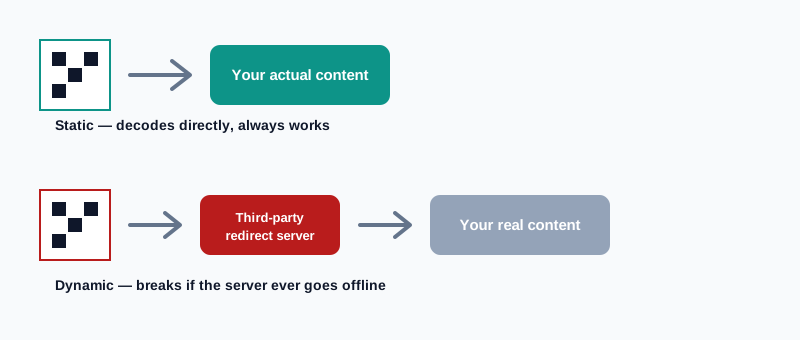
That redirect step is also the catch. A dynamic code depends entirely on that company's server staying online, that specific short-link staying active, and — in plenty of real cases — you continuing to pay for a subscription tier, since analytics is usually the upsell. Let any of those lapse, and every printed copy of that QR code — on flyers, packaging, signage you may have paid to print thousands of — stops working permanently, with zero ability to fix it after the fact, since the actual destination was never encoded in the printed pattern to begin with.
Why Client-Side Generation Matters for Privacy
Because this generator runs entirely in your browser using JavaScript, whatever you type — even something private, like a Wi-Fi password you're sharing with a houseguest, or an internal link not meant for wider distribution — is never transmitted to a server or logged anywhere. The QR image is built and rendered locally, then downloaded straight from your browser.
That's worth pausing on, because plenty of free QR tools quietly work the opposite way: your content gets sent to their server to generate the code (and, if it's a dynamic code, to keep being routed through that server every time someone scans it afterward).
How to Create a QR Code, Step by Step
Step 1: Open the QR Code Generator
Go to My PDF's QR Code Generator. No account or installation required.
Step 2: Enter Your Text or URL
Type the link, Wi-Fi credentials, or short message you want the code to contain. The code updates and appears instantly as you type.
Step 3: Choose a Size
Pick small, medium, or large, based on how the code will actually be used — more on choosing the right one below.
Step 4: Download the QR Code
Save the generated image as a PNG, ready to print, embed in a document, or share digitally.
Step 5: Test-Scan Before Printing in Bulk
Scan the downloaded code yourself with your own phone before sending it to a printer for a large run — a five-second check that prevents a much more expensive reprint.
A Practical Example: Putting a QR Code on a Printed Flyer
Say you're printing flyers for a local event and want attendees to scan a code straight to the event's signup page.
- Shorten the event page URL first if it's long, so the encoded content stays compact.
- Generate the code with QR Code Generator, choosing medium or large depending on how far away people will typically be standing when they scan it.
- Download the PNG and test-scan it yourself on your own phone.
- If the flyer itself needs to exist as a shareable PDF rather than a printed page, combine the QR code image with your flyer design using PNG to PDF, or paste it directly into whatever design software you're using before exporting to PDF.
- Print a small batch first, test-scan one of the actual printed copies (ink and paper can affect scannability slightly differently than a screen), and then commit to the full print run.
Common Mistakes When Creating and Using QR Codes
Pasting a very long URL without shortening it first. Beyond a certain length, the code either won't generate or becomes visually dense enough to be harder for some phone cameras to focus on and read.
Skipping the test-scan step. A code that looks fine on a screen can behave differently once printed, depending on paper texture, ink quality, or print resolution — always verify with a real scan before a large print run.
Making the code too small for its viewing distance. A code meant to be scanned from a few meters away on a banner needs to be considerably larger than one meant for a business card held a few inches from a phone.
Placing the code too close to other graphics. A QR code needs a clear, unobstructed border (called a "quiet zone" in the standard) to scan reliably — crowding it right up against text or images can interfere with a scanner locking onto the pattern.
Assuming any free QR code will work forever. As covered above, that depends entirely on whether it's static or dynamic — worth checking before committing to a large or permanent print run.
Choosing the Right Size
| Use case | Recommended size | Why |
|---|---|---|
| Business card, product label | Small | Scanned from a very short distance, held in hand |
| Flyer, poster, table tent | Medium | Scanned from a moderate distance, typically a meter or less |
| Large banner, event signage | Large | Needs to remain legible and scannable from several meters away |
As a rough rule of thumb, the further away a code will typically be scanned from, the larger it needs to print — a code that's perfectly scannable on a phone screen can be too small once shrunk down onto a crowded printed page.
Getting a QR Code Onto a PDF
Once you've downloaded a QR code as a PNG, there are two straightforward paths to get it into a finished document:
- Combine it with other images. If your flyer, menu, or poster is itself a set of image files, PNG to PDF combines the QR code alongside your other graphics into a single, ready-to-share PDF.
- Paste it into an existing design. Most design and word-processing software lets you insert a PNG directly onto a page before exporting the whole thing to PDF — the QR code behaves like any other image once it's downloaded.
Either way, the QR code itself doesn't need any special handling once it's a PNG file — it's just an image, and every image tool on the site treats it exactly the same as a photo or a screenshot.
Tips & Best Practices
- Shorten long URLs before generating a code. A shorter encoded string is both more compatible and easier to scan reliably.
- Always test-scan before a large print run. It takes seconds and catches a problem before it becomes a reprint.
- Match size to scanning distance. Business card-sized codes and banner-sized codes need very different physical dimensions.
- Leave a clear border around the code. Don't crowd it against other design elements.
- Know whether your code is static or dynamic before relying on it long-term. A permanent sign or product label deserves a static code that won't stop working if a third-party service changes or shuts down.
Key Takeaways
- A static QR code encodes your content directly and works permanently; a dynamic QR code depends on a third-party server staying online, which can quietly fail years later.
- This generator produces static codes only, built entirely in your browser, with nothing transmitted or tracked.
- Shorten long URLs before generating a code, and always test-scan before a large print run.
- Match the QR code's size to how far away it'll typically be scanned from — bigger for banners, smaller for business cards.
- Once downloaded as a PNG, a QR code is just an image — combine it into a finished PDF the same way you would any other graphic.
Related Reading
If you're combining a QR code with other images into a single shareable document, how to convert PNG to PDF covers that process in detail. For more guides like this one, browse the full blog or the complete tools directory. For a deeper technical look at how QR codes encode data, see Wikipedia's entry on QR codes.
Ready to create one that'll actually still work next year? Open the QR Code Generator and download yours in seconds.

Comments
Comments aren't open on the blog yet. In the meantime, share this article using the buttons above, or reach us directly at contact@mypdf.tech.