How to Add a Watermark to a PDF to Protect Your Work
Why freelancers, photographers and legal teams stamp drafts before sharing them, and how to do it without ruining readability.
Read moremacOS's Preview app can handle a few basic PDF tasks, but it doesn't cover everything, and not everyone wants to dig through Preview's menus to find the right feature. My PDF works the same way in Safari, Chrome or any other Mac browser, with no need to open Preview at all.
macOS's Preview app can handle a few basic PDF tasks, but it doesn't cover everything, and not everyone wants to dig through Preview's menus to find the right feature. My PDF works the same way in Safari, Chrome or any other Mac browser, with no need to open Preview at all.
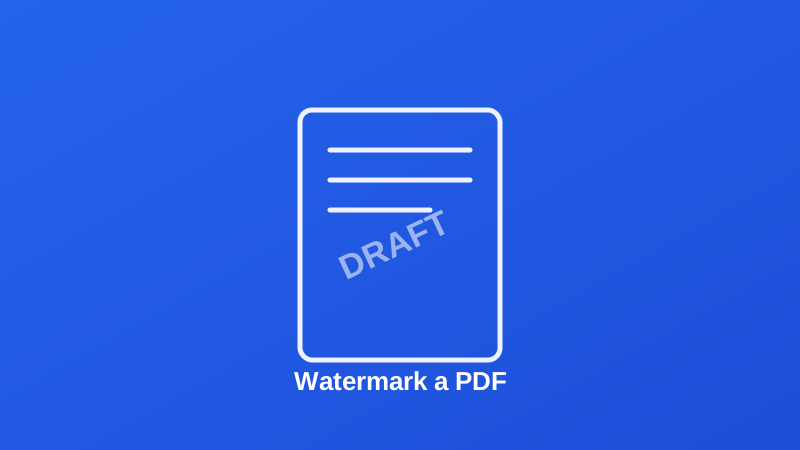
A PDF watermark tool stamps custom text diagonally across every page of a document, at an adjustable size and transparency, without permanently altering the underlying content beneath it. The result is a document that visibly carries a label — "DRAFT," "CONFIDENTIAL," a company name — on every single page, in a way that is difficult to simply crop or edit out.
Drag in the document you want to watermark, or click to browse and select it. On a Mac, drag the file in directly from Finder — Safari, Chrome and Firefox all support it the same way.
Type the text you want stamped across every page, and adjust its font size and opacity.
Our server stamps the watermark diagonally across every page, typically within seconds.
Save your PDF with the watermark applied consistently throughout.
Why freelancers, photographers and legal teams stamp drafts before sharing them, and how to do it without ruining readability.
Read moreWhat PDF encryption actually protects against, how to choose a strong password, and how to remove it again later.
Read more