Opening a full word processor just to check whether a cover letter fits under 400 words feels like using a moving truck to carry a suitcase. Most of the time, what you actually need is a quick, live number — words, characters, maybe an estimated reading time — without loading a heavier tool than the task calls for.
That's the whole job of a word counter, but there's more useful nuance to it than "paste text, get number." This guide covers exactly what's being measured, which length limits actually matter for different kinds of writing, and — since this is a PDF tools site — how to check the word count of text that's currently trapped inside a PDF rather than sitting in a text box already.
What a Word Counter Actually Measures
My PDF's Word Counter reports five things the moment you stop typing or pasting: word count, character count, sentence count, paragraph count, and an estimated reading and speaking time. All of it recalculates live, with no button to click.
A couple of these are worth understanding rather than just trusting blindly:
- Sentence count works by counting sequences of text that end in a period, exclamation point, or question mark. This is accurate for normal prose, but abbreviations ("Dr. Smith," "e.g.," "U.S.") and decimal numbers can occasionally inflate the count slightly, since the tool can't always distinguish a genuine sentence break from a period used for another reason.
- Word count splits text on whitespace — spaces, tabs, line breaks — which works well for English and most other space-separated languages. Languages that don't use spaces between words, like Chinese or Japanese, are counted differently in nature, and this method isn't built for that use case.
- Reading and speaking time are estimates, not guarantees — calculated at roughly 200 words per minute for reading and 130 words per minute for speaking, both commonly used baseline averages rather than a measurement of any specific reader.
Why Word and Character Limits Matter More Than People Think
A length limit usually isn't arbitrary — it exists because of a genuine constraint on the other end: a display width, a submission system, an editor's patience, or a platform's character cap. A few places it comes up constantly:
- Assignments and applications, where going over a stated word limit can mean an automatic point deduction, or a submission portal that simply won't accept the file.
- Cover letters and personal statements, which read as noticeably weaker when padded to fill space, or cut off awkwardly when trimmed in a rush at the last minute.
- SEO content — meta descriptions and title tags get visually truncated past a certain length in search results, so anything beyond the limit is often invisible to a searcher anyway.
- Social media captions and posts, most of which have a hard platform-enforced cap.
- Speeches and presentations, where a script needs to fit an actual time slot, not just look like a reasonable length on the page.
Common Length Limits Worth Knowing
Here's a quick reference for some of the most commonly cited limits, gathered in one place so you're not hunting for them individually:
| Context | Typical limit |
|---|---|
| Google title tag | Roughly 50–60 characters before truncation |
| Google meta description | Roughly 150–160 characters before truncation |
| X (formerly Twitter) post | 280 characters |
| Common App college essay | 650 words maximum |
| Standard cover letter | Roughly 300–400 words |
| LinkedIn post before "see more" truncation | Roughly 140–210 characters, varying by device |
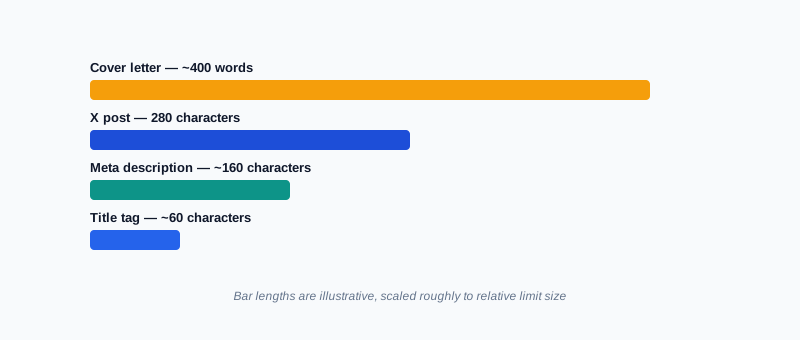
Platform-enforced limits like X's 280 characters are hard rules — go over, and the post simply won't submit. Display-based limits like a meta description are softer: nothing stops you from writing more, but anything past the cutoff usually just won't be visible to a reader scanning a results page.
How Reading Time Is Actually Calculated
The estimate is based on a widely used baseline: about 200 words per minute for silent reading, and about 130 words per minute for reading aloud. Neither figure describes any single specific reader — actual reading speed varies with the reader, the subject matter, and how carefully they're reading — but as a planning tool, it's genuinely useful for two common situations: giving a blog post's reader a rough sense of the time commitment, and checking that a speech or presentation script will actually fit its allotted slot once read aloud rather than skimmed.
How to Count Words, Step by Step
Step 1: Open the Word Counter
Go to My PDF's Word Counter. No account or software needed.
Step 2: Paste or Type Your Text
Add your text into the box — pasting is generally more reliable than retyping, since it captures the text exactly as written elsewhere.
Step 3: Read the Live Stats
Word, character, sentence, and paragraph counts, along with estimated reading and speaking time, update instantly as you type or paste.
Step 4: Compare Against Your Target
Check the relevant number — word count for an assignment, character count for a meta description — against whatever limit you're working within.
A Practical Example: Trimming a Cover Letter to Fit
Say you've drafted a cover letter and the job posting specifies a 400-word maximum, but your draft feels a little long.
- Paste the full draft into Word Counter and check the live word count.
- If it's over 400, look specifically at your longest paragraphs first — trimming a wordy middle paragraph usually costs less of the letter's actual substance than cutting evenly from every section.
- Re-check the count after each pass, watching the number update live rather than re-pasting the whole thing each time.
- Once you're comfortably under the limit, do a final read-through — a word count that fits perfectly but reads choppily from over-aggressive cutting isn't actually a win.
Counting Words Inside a PDF
Here's a situation a generic word counter can't help with directly: the text you need to count isn't sitting in a document you can copy from easily — it's inside a PDF, and pasting from a PDF viewer sometimes drags along strange line breaks or spacing.
The cleanest path is to extract the PDF's actual text first. PDF to Text pulls every readable word out of a PDF's pages into a plain file, in reading order — see our guide on converting a PDF to text for the full process, including why it only works on PDFs with a real embedded text layer rather than scanned images. Once you have that plain text, paste it straight into Word Counter for an accurate count, free of any leftover formatting quirks.
Common Mistakes When Counting Words
Trusting a word processor's count without checking what it includes. Some programs count headers, footnotes, or captions differently than others — worth a quick sanity check if a count seems off from what you expect.
Confusing a word limit with a character limit. Some platforms and forms cap words, others cap characters — check which one actually applies before trimming based on the wrong number.
Assuming reading time is a hard promise. It's a planning estimate based on an average pace, not a guarantee of how long any specific reader will actually take.
Not cleaning up pasted text first. Text copied from a PDF or web page sometimes carries extra spaces, tabs, or line breaks that quietly inflate a character count — running it through Whitespace Remover first gives a cleaner, more accurate number.
Forgetting that abbreviations can skew sentence counts. A paragraph full of abbreviations or decimal figures may show a slightly higher sentence count than it would if read by a person, since the tool counts by punctuation pattern rather than genuine grammatical sentence breaks.
Word Counter vs. Other Ways to Check a Count
| Method | Speed | Works instantly on any pasted text | Keeps your draft private |
|---|---|---|---|
| Word Counter | Live, updates as you type | Yes | Yes — calculated entirely in your browser |
| A word processor's built-in count | Requires the document to already be open | Somewhat, depending on the software | Depends on the software |
| Counting manually | Very slow | No | N/A |
For a quick check on text that isn't already sitting in a document — a draft from an email, a paste from a PDF, a block of copy for a form — a dedicated counter is simply faster than opening anything heavier.
Tips & Best Practices
- Paste rather than retype whenever possible, to avoid accidental errors that change your actual count.
- Check both word and character limits for anything going onto a platform — many have both, and only one might be the binding constraint.
- Clean up extra whitespace first if you're working with text pulled from a PDF or web page, for a more accurate character count.
- Treat reading time as a planning guide, not a promise — useful for pacing a script or setting reader expectations, not a precise measurement.
- Extract text from a PDF first if that's where your content actually lives, rather than trying to manually retype or copy-paste around a PDF viewer's quirks.
Key Takeaways
- Word Counter measures words, characters, sentences, paragraphs, and estimated reading/speaking time, recalculating live as you type.
- Different contexts enforce different kinds of limits — some hard character caps, some softer word-count guidelines — so check which one actually applies.
- Reading time estimates are planning tools based on average pace, not a guarantee for any specific reader.
- Text pulled from a PDF should be extracted with PDF to Text first, then pasted in, for an accurate count free of formatting artifacts.
- Clean up extra whitespace before checking a character count that needs to be precise, especially with text copied from another source.
Related Reading
If the text you need counted is currently locked inside a PDF, how to convert a PDF to text covers extracting it cleanly first. For more guides like this one, browse the full blog or the complete tools directory. For background on how reading-speed estimates are typically calculated, see Wikipedia's entry on words per minute.
Got something to check against a length limit right now? Open the Word Counter and get an instant, accurate count.
Comments
Comments aren't open on the blog yet. In the meantime, share this article using the buttons above, or reach us directly at contact@mypdf.tech.