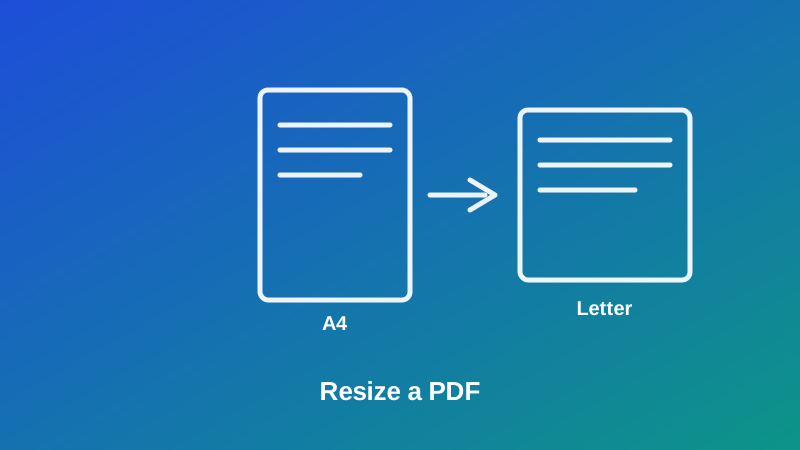
Somebody emails you a PDF formatted for A4 paper, you hit print on a US printer loaded with Letter, and the result comes out with an odd sliver of extra margin on one side, or worse, a stray final page that shouldn't exist. Nothing about the document was actually wrong — it just wasn't built for the paper size sitting in your printer tray.
This happens more often than it should, mostly because A4 and US Letter look almost identical at a glance but aren't the same shape at all. Resizing a PDF fixes the mismatch directly, and it takes about as long to do as it took to notice the problem. Here's exactly how it works, when it's actually worth doing, and the one thing it deliberately doesn't do that people sometimes expect it to.
What Resizing a PDF Actually Does
A resize tool rescales every page of a document to fit a new, standard paper size — A4, US Letter, US Legal or A3 — without adding or deleting any content. My PDF's Resize PDF tool takes whatever's already on each page and fits it proportionally onto the target size, the same way an image scales up or down without warping when you resize it by dragging a corner rather than an edge.
That's a meaningfully different job from cropping. Crop PDF trims a margin off an existing page, making it smaller by cutting away the edges. Resize keeps everything on the page and changes what "the page" itself measures. Neither one substitutes for the other — a badly-scanned document with wide borders and the wrong regional paper size genuinely needs both, in sequence.
Why Paper Size Mismatches Happen
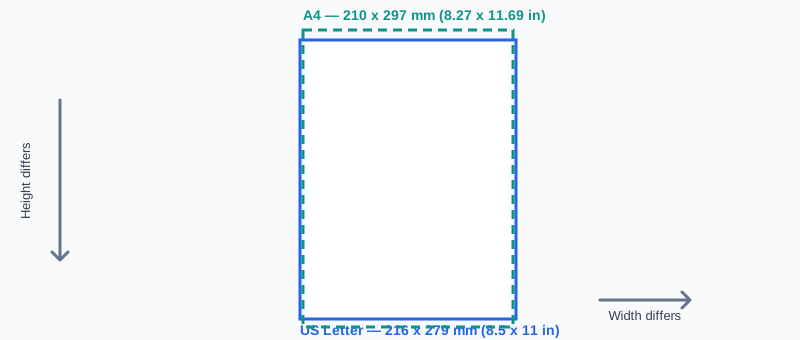
The root cause, almost always, comes down to one specific fact: A4 is the default paper size across most of the world, while US Letter is the default in the United States and Canada — and the two are close in proportion but not identical.
- A4 measures 210 × 297 mm (8.27 × 11.69 in).
- US Letter measures 216 × 279 mm (8.5 × 11 in).
A4 is slightly narrower and noticeably taller than Letter. Set a document built for one against the other and the mismatch shows up as unexpected margins, content that scales down slightly to fit, or in the worst case, a document that spills one extra line onto a phantom final page. It's a small difference on paper — literally a few millimeters — but PDF viewers and printers treat page dimensions exactly, not approximately, so the mismatch is never invisible once it hits a printer.
The other common cause is simpler: a batch of scanned pages, captured on different machines or different days, sometimes drift between sizes for no reason beyond scanner inconsistency. Standardizing them all to one size afterward makes the resulting document behave like it was always one consistent file.
A4 vs. Letter vs. Legal vs. A3, at a Glance
Here's a quick reference for the four sizes Resize PDF supports, and where each one is actually the norm:
| Size | Dimensions (mm) | Dimensions (in) | Typically used for |
|---|---|---|---|
| A4 | 210 × 297 | 8.27 × 11.69 | General documents across most of the world |
| US Letter | 216 × 279 | 8.5 × 11 | Everyday documents in the US and Canada |
| US Legal | 216 × 356 | 8.5 × 14 | Contracts and legal filings in the US |
| A3 | 297 × 420 | 11.69 × 16.54 | Posters, diagrams, and spreads needing more room |
If you're ever unsure which to pick, match wherever the document is actually going to be printed or filed, not wherever it happens to have come from.
How to Resize a PDF, Step by Step
Step 1: Open the Resize PDF Tool
Go to My PDF's Resize PDF tool. No installation or account required.
Step 2: Upload Your PDF
Drag your file into the upload area, or click to browse and select it.
Step 3: Choose Your Target Paper Size
Pick A4, US Letter, US Legal or A3, based on where the document is headed.
Step 4: Click "Resize PDF"
Every page is rescaled in one pass, typically within seconds, regardless of document length.
Step 5: Download and Preview Before Printing in Bulk
Open the resized file and check a page or two — particularly if the source and target sizes are noticeably different in proportion — before sending a full print run.
A Practical Example: Preparing a UK Report for a US Printer
Say a colleague in London sends over a ten-page report formatted for A4, and you need to print copies at a US office where every printer is loaded with Letter paper by default.
- Upload the report to Resize PDF.
- Choose US Letter as the target size, since that's what the printer at hand actually holds.
- Download the resized file and open the first couple of pages to confirm nothing looks cramped or oddly spaced.
- If the document also has a wide, unnecessary margin left over from the original A4 layout, run it through Crop PDF afterward for a tighter final look.
- Print with confidence, knowing the file now matches the paper actually loaded in the tray.
That's the whole fix — no manual "shrink to fit" print-dialog guessing required, and it works the same way every time the file is printed again later, by anyone.
Does Resizing Shrink or Distort My Text?
This is worth addressing directly, since it's the most common hesitation. Resizing scales everything on the page proportionally — the same way a photo keeps its shape when you resize it from a corner instead of stretching one edge. Text and images don't get squashed, stretched, or warped out of proportion.
What can happen, because A4 and Letter aren't exactly the same shape, is a small amount of extra margin appearing on one dimension once content is fit to the new page. That's a normal, expected side effect of two page shapes not lining up perfectly — not a flaw in the resize itself. Content is never cropped or cut off in this process; if anything, changing shape adds a sliver of blank space rather than removing anything.
Common Mistakes When Resizing a PDF
Confusing resize with crop. Resizing changes the page's overall dimensions; cropping trims a margin off an existing page. If a document has both a wrong regional size and an unnecessarily wide border, it usually needs both tools, not just one.
Expecting a custom or non-standard target size. Only four sizes are available — A4, US Letter, US Legal and A3. If you need a page size outside those four, resizing here won't produce it.
Assuming resizing will also fix orientation. Resizing changes dimensions, not rotation. A sideways page stays sideways after resizing — use Rotate PDF separately for that.
Not previewing before a large print run. A resize that looks correct on screen is worth a quick physical check before fifty copies come off a printer.
Forgetting a protected PDF needs unlocking first. An encrypted file can't be resized until the password is removed with Unlock PDF.
Resize vs. Crop vs. Rotate: Which Tool Do You Actually Need?
These three get reached for in the same situations — cleaning up a document before printing or filing — but each solves a distinct problem:
| Tool | What it changes | Use it when |
|---|---|---|
| Resize PDF | Rescales the whole page to a standard size (A4, Letter, Legal, A3) | A document's page size doesn't match the paper it needs to print on |
| Crop PDF | Trims an existing margin, shrinking the page boundary | A page has excess white space or a scanner border |
| Rotate PDF | Changes a page's orientation by 90, 180 or 270 degrees | A page is sideways or upside down |
A document that's both the wrong regional size and has a wide scanner border commonly needs resize and crop together — resize to fix the paper size mismatch, crop afterward for a tighter final page.
Tips & Best Practices
- Match the target size to where the document is actually going, not wherever it originally came from — A4 for most of the world, Letter or Legal for the US and Canada.
- Preview a page or two before a large print run, especially when the source and target proportions differ noticeably.
- Resize before merging mismatched scans, so you can confirm each piece looks right individually rather than troubleshooting a combined file afterward.
- Follow up with Crop PDF if the resized file still carries more margin than you'd like.
- Unlock protected files first. Resizing, like most other operations here, requires an unencrypted starting file.
Key Takeaways
- A4 and US Letter are close in size but not identical, and that small mismatch is the most common reason a PDF prints with unexpected margins or an extra page.
- Resizing rescales existing content proportionally to a new standard page size — it doesn't crop, distort, or reflow anything.
- Only four target sizes are supported: A4, US Letter, US Legal and A3 — there's no custom size option.
- Resize and Crop solve different problems and often get used together: resize for the correct paper size, crop for a tighter page afterward.
- Resizing doesn't touch orientation — a sideways page needs Rotate PDF separately.
Related Reading
If a resized document still carries more margin than you'd like, how to crop a PDF covers trimming that down afterward. For the broader picture of getting a document ready for print or the web, see preparing PDFs for print and web. For more guides like this one, browse the full blog or the complete tools directory. For the technical standard behind A4 and its related sizes, see Wikipedia's entry on ISO 216.
Got a document formatted for the wrong paper size? Open the Resize PDF tool and fix it in seconds.

Comments
Comments aren't open on the blog yet. In the meantime, share this article using the buttons above, or reach us directly at contact@mypdf.tech.